
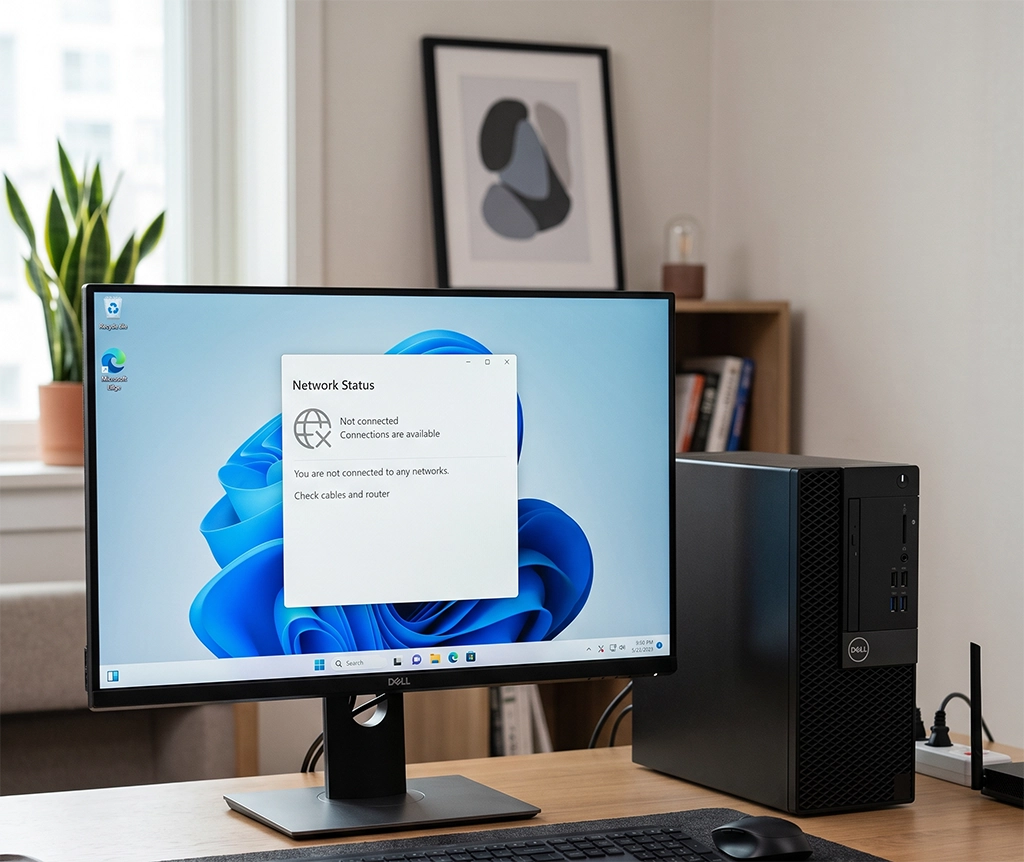
You turn on your desktop computer, only to find a globe icon or a “No Internet” message in the Windows 11 taskbar. This can be especially frustrating when you need to join an online meeting, access work files, play an online game, or complete an urgent task.
However, a Windows 11 internet connection problem does not always mean that your network card has failed. The cause could be as simple as a loose Ethernet cable, an unresponsive router port, a disabled network adapter, an IP address conflict, or a corrupted DNS cache.
Before purchasing a new Ethernet adapter or calling a computer repair service, spend a few minutes working through the following steps. You may be able to restore the connection without replacing any hardware.
Even if these steps do not solve the problem, they can help you identify whether the issue is related to your internet service, router, Ethernet cable, Windows settings, or desktop network adapter.
1. Check Whether Other Devices Can Access the Internet
Start by checking whether a smartphone, laptop, or another computer can connect to the internet through the same router.
If every device has lost internet access, the problem is probably not limited to your desktop PC. The likely causes include:
- A temporary internet service provider outage
- A modem or router error
- A loose cable between the modem and router
- A failed router connection
- Maintenance or service interruption in your area
Restart the modem and router before changing any Windows settings.
Turn both devices off, wait approximately 30 seconds, and then turn the modem back on. Allow it to finish starting before turning on the router. Reconnecting may take several minutes.
Restarting the router temporarily disconnects every device on the network, so avoid doing this while someone else is in an online meeting, uploading files, or using an internet-based service.
If Wi-Fi works normally on other devices but the desktop computer still has no internet connection, focus on the following components:
- The Ethernet cable connected to the desktop
- The router’s LAN port
- The desktop’s built-in Ethernet port
- The Windows 11 network adapter
- The network adapter driver
This simple test helps you determine whether to contact your internet provider or continue troubleshooting the desktop computer.
2. Inspect the Ethernet Cable and Router LAN Port
When desktop Ethernet is not working, the physical connection should always be checked before changing software settings.
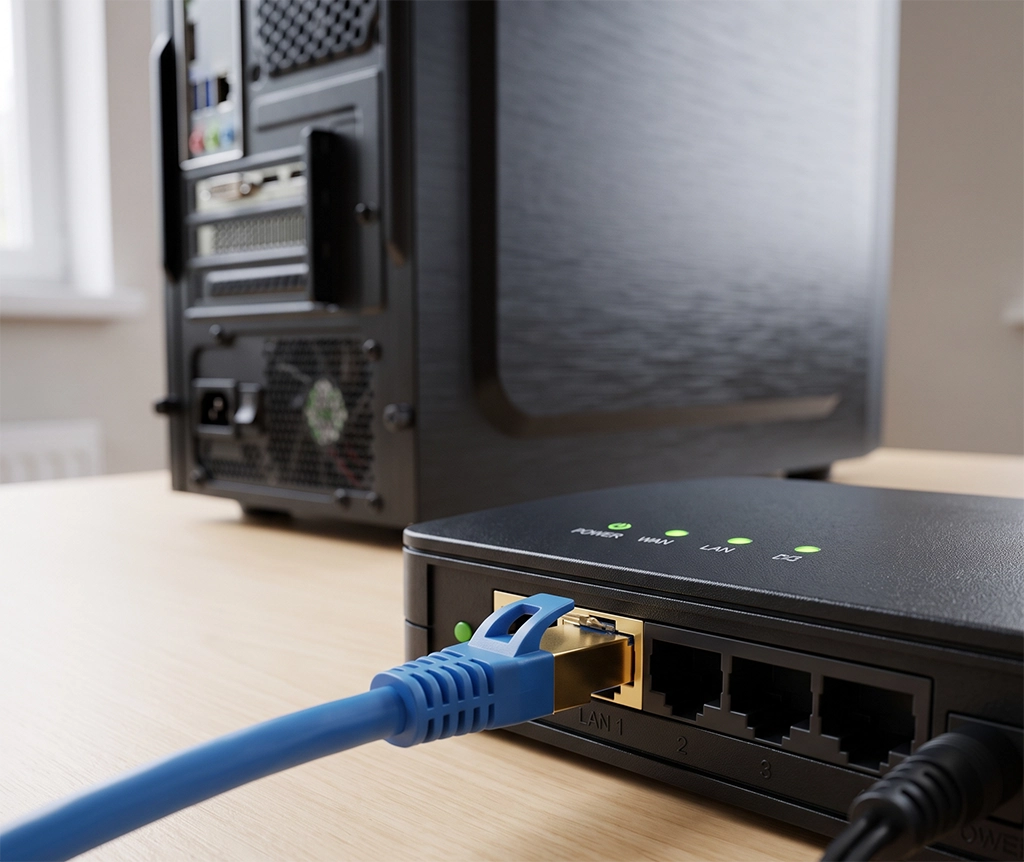
Disconnect the Ethernet cable from both the desktop computer and the router. Reconnect it firmly until the connector clicks into place.
Make sure the cable is connected to one of the router’s LAN ports. Do not connect it to the port labeled “Internet” or “WAN,” as that port is normally used for the connection between the router and modem.
Next, check the Ethernet port on the back of the desktop computer. Many network ports have small indicator lights that turn on or blink when a connection is detected.
If no light appears, the problem may involve one of the following:
- A damaged Ethernet cable
- A faulty router LAN port
- A loose Ethernet connector
- A disabled network adapter
- A damaged desktop Ethernet port
Try these quick tests:
- Connect the cable to a different LAN port on the router.
- Test the connection with another known-working Ethernet cable.
- Connect the original cable to a different computer.
- Restart the router and desktop PC.
- Check whether the Ethernet port lights turn on after restarting.
If the internet starts working after you replace the cable, there is no need to reset Windows or reinstall the network driver.
When purchasing a replacement cable, choose the correct length and confirm that the retaining clips on both connectors are intact. For most home desktop connections, a reliable Cat 5e or Cat 6 cable is sufficient. A higher cable category will not fix a damaged router port, defective network adapter, or slow internet plan.
3. Check the Ethernet Status in Windows 11
If the physical connection appears normal, check how Windows 11 is detecting the network.
Open the Start menu and follow this path:
Settings → Network & internet → Ethernet
The Ethernet connection should normally show a “Connected” status.
If Windows displays “No Internet,” “Action needed,” or “Unidentified network,” the network adapter may be detected, but the computer may not have received a valid IP address or established a proper internet connection.
You should also confirm that the Ethernet adapter has not been disabled.
Go to:
Settings → Network & internet → Advanced network settings
Locate the Ethernet adapter. If it is disabled, select the option to enable it and test the internet connection again.
If the Ethernet section is completely missing, open Device Manager and check whether Windows can detect the network adapter. A missing device may indicate a driver issue, disabled onboard LAN setting, or hardware problem.
4. Run the Windows 11 Network Troubleshooter
If you are not familiar with network settings, use the built-in diagnostic tool before entering commands or reinstalling drivers.
Open the Start menu and search for “Get Help.” Launch the app and enter a phrase such as:
Connect to network and internetSelect the option to run network diagnostics and follow the on-screen steps.
The diagnostic tool can check the network adapter and identify common connection problems. Depending on the issue, Windows may recommend enabling the adapter, resetting a setting, reconnecting the Ethernet cable, or completing another troubleshooting step.
After the diagnostic process finishes, open a web browser and try loading more than one website. Testing several websites helps rule out a temporary problem with a single page.
5. Reset the Network Configuration with Command Prompt
If the troubleshooter does not restore the connection, you can reset important network components and request a new IP address.
Open the Windows search bar and type:
Command PromptSelect “Run as administrator.” When the User Account Control window appears, select “Yes.”
Enter the following commands one at a time. Press Enter after each command:
netsh winsock reset


netsh int ip reset


ipconfig /release


ipconfig /renew


ipconfig /flushdns
After all commands have finished, restart the desktop computer.
These commands perform several different functions:
netsh winsock reset
This resets the Windows network communication catalog. It can help when damaged network settings or a software conflict prevents applications from connecting properly.
netsh int ip reset
This resets the TCP/IP configuration used by Windows to communicate with the network.
ipconfig /release
This releases the IP address currently assigned to the computer.
ipconfig /renew
This requests a new IP address from the router or network.
ipconfig /flushdns
This clears the local DNS resolver cache. It can help when outdated or incorrect DNS information prevents websites from loading.
If ipconfig /release temporarily disconnects the network, that is expected. The following ipconfig /renew command requests a new address.
Business computers require extra caution. If the desktop uses a manually assigned static IP address, custom DNS configuration, VPN software, or a company network, record the current settings or contact the network administrator before making broad changes.
6. Check the Ethernet Adapter in Device Manager
If Windows 11 internet is still not working, inspect the network adapter and its driver.
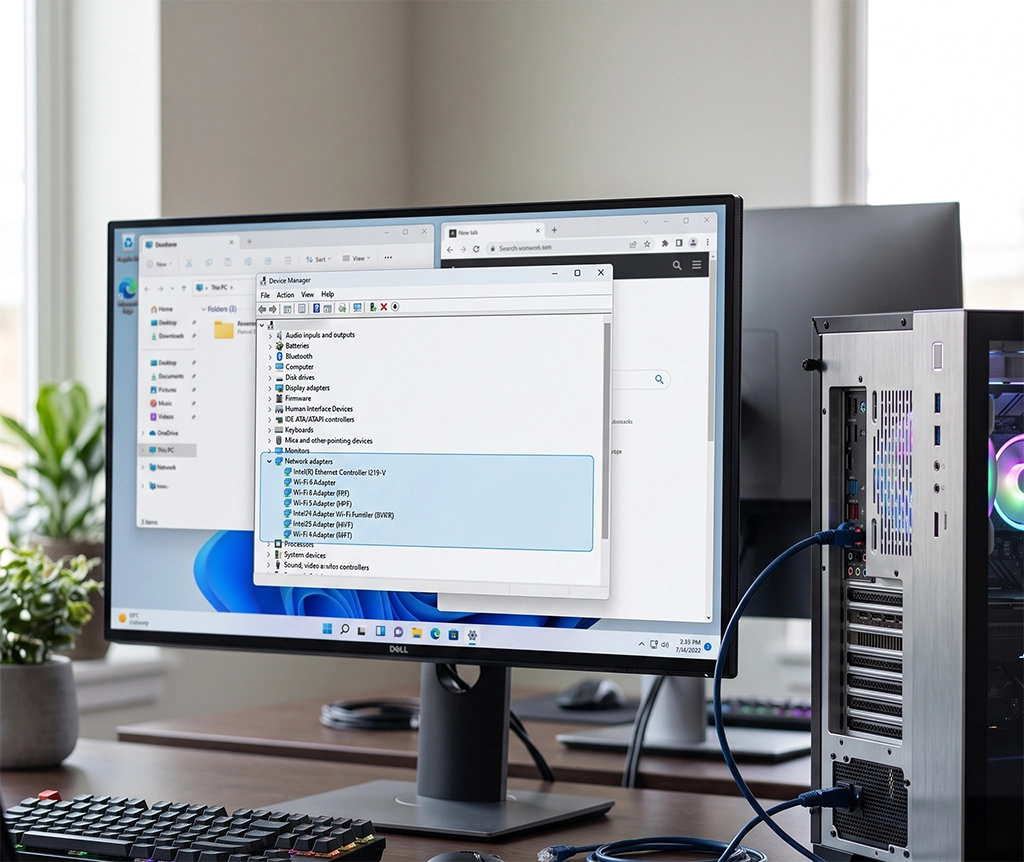
Right-click the Start button and select “Device Manager.” Expand the “Network adapters” category.
Look for a device name containing terms such as:
- Ethernet
- LAN
- Gigabit
- PCIe
- Realtek
- Intel
The exact name depends on the network controller installed in the desktop or built into the motherboard.
A yellow warning symbol next to the adapter may indicate a driver or device error. If the network adapter appears faded, it may be disabled or disconnected.
Right-click the adapter and check whether “Enable device” is available. If it is, enable the device and test the connection again.
If the adapter is not listed, select “View” and enable “Show hidden devices.” You can also select “Action” and run “Scan for hardware changes.”
A network adapter that repeatedly disappears from Device Manager may indicate a corrupted driver, disabled motherboard LAN controller, unstable power delivery, or failing hardware.
7. Reinstall the Network Adapter Driver Carefully
A damaged or incompatible network driver can cause Ethernet problems, particularly after a Windows update or hardware change.
Before uninstalling the driver, download the correct replacement package if possible.
For a prebuilt desktop PC, search the manufacturer’s support website using the complete computer model number. For a custom-built desktop, identify the motherboard model and use the motherboard manufacturer’s official support page.
If the affected computer cannot access the internet, download the driver on another device and transfer it using a USB flash drive.
To reinstall the adapter:
- Open Device Manager.
- Expand “Network adapters.”
- Right-click the Ethernet adapter.
- Select “Uninstall device.”
- Read the options carefully before removing the driver package.
- Restart the desktop computer.
Windows will normally attempt to detect and reinstall the network adapter after restarting. If it does not, install the driver package you downloaded earlier.
Avoid unverified driver download websites and aggressive automatic driver update programs. Incorrect network drivers may create additional connection problems or install unwanted software.
8. Use Network Reset Only as a Final Software Fix
If the previous steps do not work, Windows 11 includes a full network reset option.
Go to:
Settings → Network & internet → Advanced network settings → Network reset
Select “Reset now” and confirm the action.
The computer will restart, installed network adapters will be reconfigured, and many networking settings will return to their default values.
Network reset can be useful when Windows detects the adapter but continues to show no internet connection. However, it should not be the first troubleshooting step.
You may need to reinstall or reconfigure:
- VPN software
- Virtual network adapters
- Static IP settings
- Custom DNS addresses
- Network security software
- Virtual machine networking
- File-sharing configurations
If the desktop is used for work, record its IP address, DNS configuration, VPN application, and company network settings before using Network Reset.
9. Determine Whether You Need a New Cable or Ethernet Adapter
Do not purchase new hardware until you have narrowed down the source of the problem.
If another Ethernet cable immediately restores the connection, replace the original cable.
If the connection works through one router port but not another, the router may have a faulty LAN port. You can continue using a working port if one is available, but repeated port failures may justify replacing or inspecting the router.
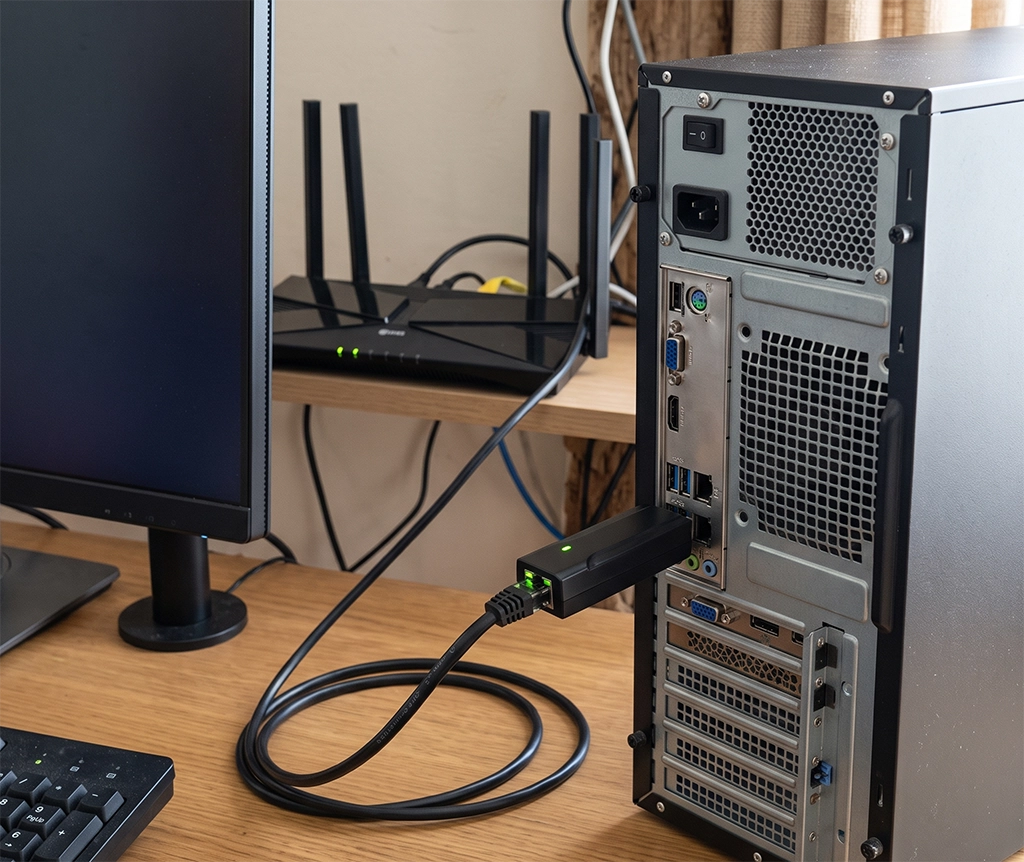
If a USB Ethernet adapter works while the built-in Ethernet port does not, the onboard network controller or physical port may require repair.
Desktop PC users generally have two practical replacement options:
USB Ethernet adapter
A USB Ethernet adapter is easy to install and does not require opening the computer case. It can also be used as a temporary diagnostic tool to determine whether the built-in Ethernet port is causing the problem.
Check whether the adapter supports the speed of your network. For a gigabit internet or local network connection, choose an adapter that supports Gigabit Ethernet and connect it to a suitable USB port.
PCIe Ethernet card
A PCIe Ethernet card is installed inside the desktop computer. It can provide a more permanent wired connection but requires an available PCIe slot and basic PC installation experience.
Before purchasing one, check the available expansion slots, case accessibility, operating system support, and driver availability.
If you are uncomfortable opening the desktop case, a USB adapter or professional installation may be the safer option.
10. When to Contact an Internet Provider or Computer Repair Service
Contact your internet service provider when multiple devices cannot access the internet, the modem shows an abnormal status light, or restarting the network equipment does not restore the connection.
Consider contacting the desktop manufacturer or a computer repair service when:
- The Ethernet adapter repeatedly disappears from Device Manager
- No Ethernet port light appears with multiple working cables
- The connector does not remain securely attached
- A USB Ethernet adapter works but the built-in port does not
- The issue began after a power surge, lightning strike, or outage
- The motherboard Ethernet port appears physically damaged
- A company static IP or internal network must be restored
- Windows cannot reinstall or detect the network adapter
Before requesting support, take photos or screenshots of the following:
- The Windows 11 network status
- Any error messages
- The network adapter in Device Manager
- Warning icons or device error codes
- The Ethernet port indicator lights
- The router connection
- The troubleshooting steps already attempted
Providing this information can help the technician estimate the likely repair, prepare suitable replacement parts, and avoid repeating basic checks.
Summary: Fixing Windows 11 Internet Problems on a Desktop
If Windows 11 internet is not working on a desktop PC, check the problem in this order:
- Confirm whether other devices can access the internet.
- Reconnect the Ethernet cable.
- Test another router LAN port.
- Try a known-working Ethernet cable.
- Check the Ethernet status in Windows 11.
- Enable the network adapter if it is disabled.
- Run the Windows network troubleshooter.
- Reset the network configuration through Command Prompt.
- Inspect and reinstall the Ethernet adapter driver.
- Use Network Reset only after the earlier steps fail.
Following this order helps identify whether the problem comes from the internet service, router, Ethernet cable, Windows settings, driver, or network adapter.
It can also prevent unnecessary spending. A loose cable should not lead to a motherboard replacement, and a temporary router problem should not result in purchasing a new Ethernet adapter.
If the connection still does not work after completing every step, save the error messages and Device Manager information before contacting the desktop manufacturer or a computer repair provider. Clear troubleshooting details can lead to a faster and more accurate diagnosis.