
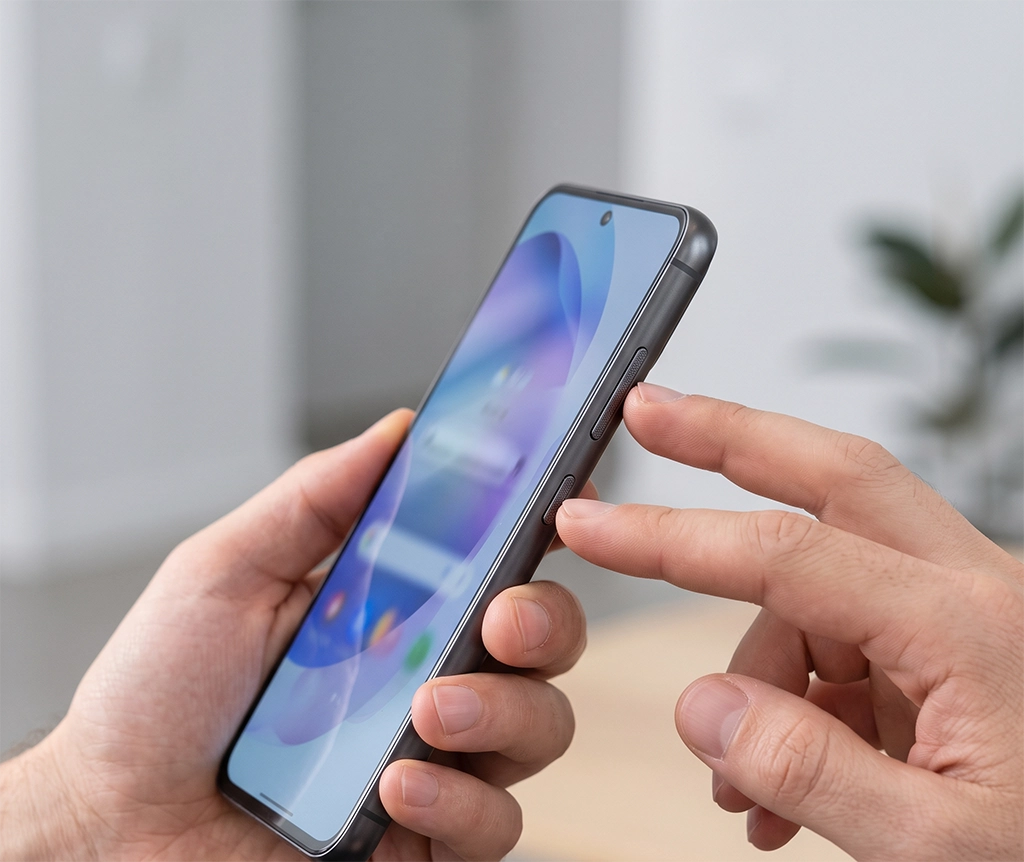
Saving a payment receipt, booking confirmation, message, or webpage should be simple. However, taking a screenshot can become frustrating when pressing the side buttons only lowers the volume or opens the power menu.
Samsung Galaxy phones offer several ways to capture the screen. In addition to the standard button combination, you can use a palm swipe gesture, scrolling screenshot, Assistant menu, S Pen, or voice command.
This guide explains how to take a screenshot on Samsung Galaxy phones using five practical methods. You will also learn where screenshots are saved and what to do when the screenshot feature is not working.
Before Taking a Screenshot on a Samsung Galaxy Phone
Button locations and menu names can vary depending on the Galaxy model and One UI version. An older Galaxy phone may not have exactly the same settings as a newer Galaxy S or Galaxy Z device.
Some banking, payment, streaming, private browsing, and security-related apps may also prevent screenshots. If the screenshot feature works on the Home screen but not inside a particular app, the restriction may come from that app rather than the phone.
Before troubleshooting the device, test the screenshot function on the Home screen or in the Settings app.
1. Take a Screenshot with the Side and Volume Down Buttons
The fastest and most common way to take a screenshot on Samsung Galaxy phones is to press the Side button and Volume Down button at the same time.
How to Use the Button Combination
- Open the screen you want to capture.
- Press the Side button and Volume Down button simultaneously.
- Release both buttons immediately.
- Wait for the screen to flash or for the screenshot toolbar to appear.
The most important point is to press the buttons briefly. Do not hold them down.
Holding the buttons for too long may open the power menu or activate a different function. Think of the action as a quick press and release rather than a long press.
If the volume changes but no screenshot is captured, the two buttons were probably not pressed at exactly the same time. Adjust your grip and try again.
A thick or rigid phone case can also make one of the buttons difficult to press. Remove the case temporarily and test the button combination again. This will help you determine whether the problem is caused by the phone or the case.
2. Take a Screenshot with Palm Swipe
If pressing two buttons at the same time feels uncomfortable, you can use the Palm swipe to capture feature.
This method allows you to move the edge of your hand across the display to save the current screen.
How to Enable Palm Swipe to Capture
- Open the Settings app.
- Select Advanced features.
- Open Motions and gestures.
- Turn on Palm swipe to capture.
After enabling the feature, place the side of your hand near one edge of the screen. Keep your hand lightly touching the display and swipe it across to the opposite edge.
The screen should briefly flash when the screenshot is captured.
What to Do If Palm Swipe Is Not Working
Return to Settings and confirm that Palm swipe to capture is enabled.
The gesture may not work when your hand moves too quickly or does not make enough contact with the screen. Try moving the side of your hand across the display at a steady speed.
A case with raised screen edges may prevent your hand from touching the display correctly. Remove the case for a moment or move your hand slightly farther inside the screen.
Some apps may interpret the motion as normal scrolling. If the gesture continues to move the page instead of taking a screenshot, use the button combination or Assistant menu instead.
3. Capture a Long Page with Scrolling Screenshot
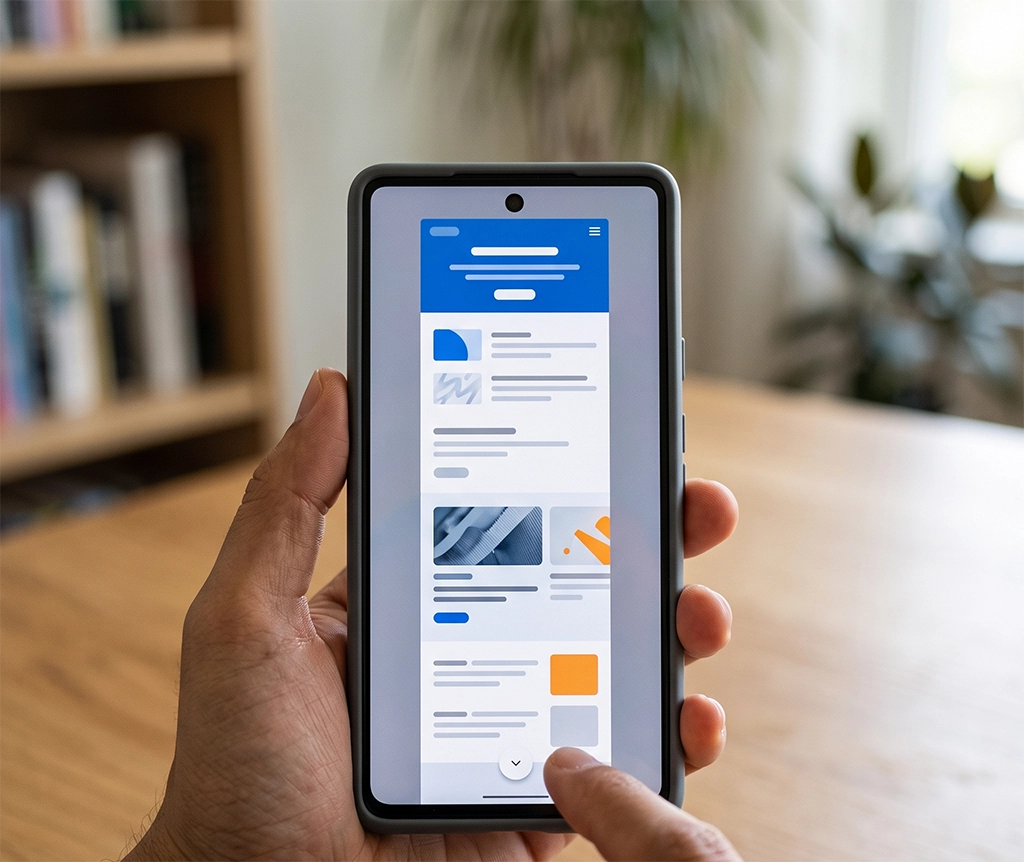
A standard screenshot only saves the content currently visible on the screen. If you need to capture a long webpage, shopping receipt, booking confirmation, or order history, use the scrolling screenshot feature.
A scrolling screenshot combines additional content below the visible screen into one long image.
How to Take a Scrolling Screenshot on Samsung Galaxy
- Open the webpage or content you want to save.
- Take a regular screenshot using the buttons or palm swipe gesture.
- Look for the screenshot toolbar at the bottom of the screen.
- Tap the Scroll capture icon, which usually contains downward arrows.
- Continue tapping the icon until all the required content has been captured.
- Tap an empty area or wait for the capture process to finish.
The phone will save the result as one long image instead of several separate screenshots.
This feature is particularly useful for saving travel schedules, purchase histories, mobile receipts, accommodation details, directions, and long articles.
What to Do If the Scroll Capture Icon Is Missing
Open Settings and go to Advanced features. Look for Screenshots and screen recordings, and make sure that Show toolbar after capturing is enabled.
The exact wording may differ depending on the One UI version installed on the phone.
The Scroll capture icon may not appear when the current screen does not contain additional content below it. It may also be unavailable in apps that do not support scrolling screenshots.
To test the feature, open a long webpage in a mobile browser and take another screenshot.
4. Take a Screenshot Without Buttons Using the Assistant Menu
The Assistant menu provides another way to capture the screen without pressing physical buttons.
It can be helpful when the Side or Volume button is damaged, difficult to press, or covered by a protective case. It is also useful for people who find it uncomfortable to press two buttons simultaneously.
How to Enable the Assistant Menu
- Open the Settings app.
- Select Accessibility.
- Open Interaction and dexterity.
- Turn on Assistant menu.
- Tap the floating Assistant menu icon.
- Select Screenshots or a similarly named capture option.
After the feature is enabled, a small floating icon appears on the screen. Tap this icon whenever you need to access the screenshot command.
The floating button can normally be moved to a different part of the display. Place it near the edge of the screen so that it does not cover important content.
If the screenshot option is not immediately visible, open the Assistant menu settings and check which shortcuts have been added to the menu.
5. Take a Screenshot with S Pen or a Voice Command
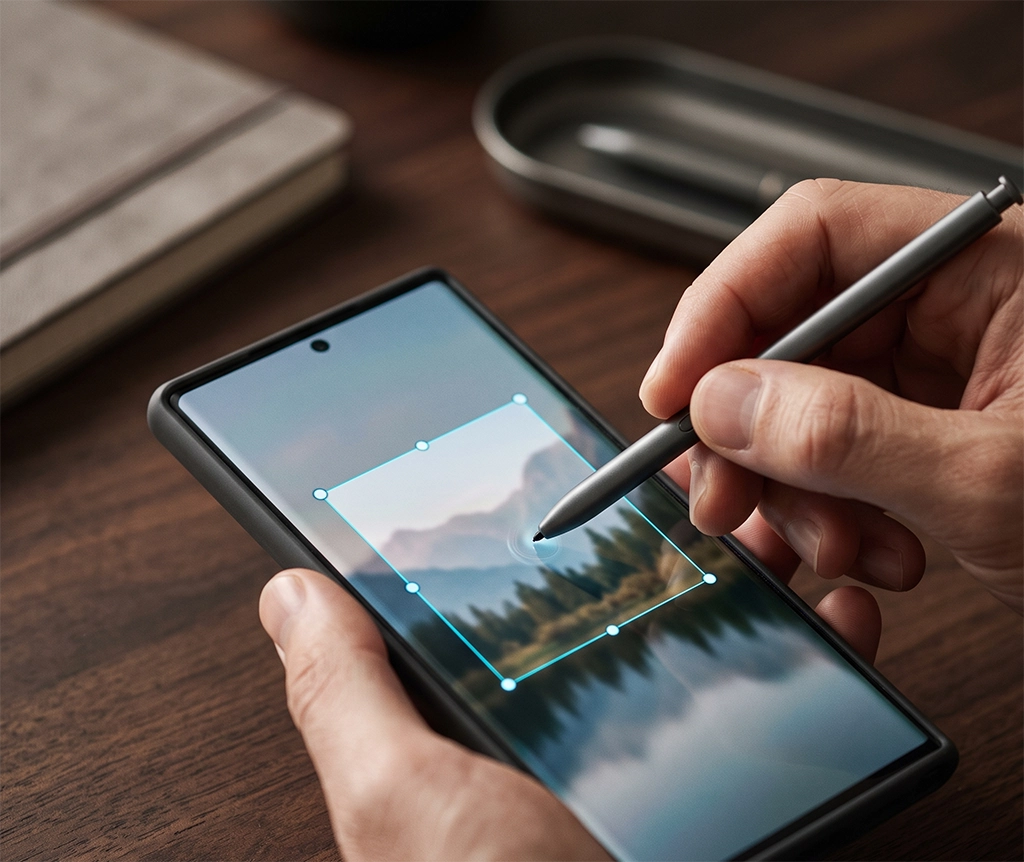
Galaxy devices that support S Pen provide additional screen capture features. These tools are useful when you want to capture a particular section rather than the entire display.
How to Capture the Screen with S Pen
Remove or activate the S Pen and open Air command. Depending on the model and One UI version, you may see options such as Screen write or Smart select.
Screen write usually captures the current screen and allows you to add handwritten notes. Smart select lets you choose a particular area of the display before saving or sharing it.
Feature names and availability can vary between Galaxy models. Some S Pen features are limited to compatible Galaxy S Ultra, Galaxy Note, and selected Galaxy Tab devices.
How to Take a Screenshot with Bixby
If Bixby is enabled, you may be able to capture the screen with a voice command.
Activate Bixby and say:
“Take a screenshot.”
The phone should capture the current screen without requiring you to press any buttons.
Voice activation and the necessary permissions must be configured in advance. The command may also be restricted in certain security-sensitive apps.
For urgent or important screenshots, the standard button combination or Assistant menu may provide a more consistent result.
Where Are Samsung Galaxy Screenshots Saved?
Screenshots are normally stored in the Gallery app and in a dedicated folder within the phone’s internal storage.
Find Screenshots in the Gallery App
- Open Gallery.
- Select Albums.
- Open the Screenshots album.
The newest screenshot should appear near the top or bottom depending on how the Gallery app is sorted.
Find Screenshots in the My Files App
- Open My Files.
- Select Internal storage.
- Open the DCIM folder.
- Select Screenshots.
The usual folder path is:
Internal storage > DCIM > ScreenshotsScreenshots taken inside Secure Folder may remain inside Secure Folder. If an image does not appear in the regular Gallery app, check whether the screenshot was captured while using a protected app or Secure Folder.
Cloud synchronization settings can also affect where images appear. If Gallery sync is enabled, screenshots may be backed up to a connected cloud service.
How to Edit a Screenshot After Capturing It
The screenshot toolbar may include options to crop, draw, tag, share, or delete the image.
To protect personal information, review the screenshot before sharing it. Crop out unnecessary areas and cover details such as:
- Full names
- Phone numbers
- Email addresses
- Home addresses
- Order numbers
- QR codes
- Barcodes
- Account details
- Reservation numbers
The Samsung Gallery editor is usually sufficient for basic cropping, drawing, and markup. If you frequently edit screenshots for work, blogging, customer service, or online selling, a dedicated photo-editing app may provide more precise blurring and annotation tools.
Why Is My Samsung Galaxy Screenshot Not Working?
If you cannot take a screenshot, test the feature on the Home screen or inside the Settings app first.
If screenshots work there but fail inside one particular app, the app may be blocking screen capture for security, privacy, or content-protection reasons.
If Samsung Galaxy screenshots are not working anywhere, follow this troubleshooting order.
1. Press and Release the Buttons Quickly
Press the Side and Volume Down buttons together, then release them immediately. Holding the buttons for too long can trigger another function.
2. Remove the Phone Case
A thick case may prevent one of the buttons from being fully pressed. Remove the case and try taking another screenshot.
3. Check Palm Swipe Settings
Go to:
Settings > Advanced features > Motions and gesturesConfirm that Palm swipe to capture is enabled.
4. Enable the Screenshot Toolbar
Go to the screenshot-related settings under Advanced features and enable the toolbar that appears after capturing.
This setting is required if you want to use scrolling screenshot controls immediately after taking a screenshot.
5. Restart the Phone
A temporary software issue may interfere with buttons, gestures, or the screenshot toolbar. Restart the phone and test the feature again.
6. Check for a Software Update
Open Settings, select Software update, and check whether an update is available.
Menu names can vary by device, carrier, and region. Keep the phone sufficiently charged and connected to a stable network before starting an update.
7. Test the Physical Buttons
Check whether the Side and Volume Down buttons work during normal use. If the volume does not change or the Side button does not respond, there may be a button or hardware problem.
Samsung Members may include phone diagnostic tools that can help test supported device functions.
If the buttons remain unresponsive even after removing the case and restarting the phone, consider arranging an inspection through an authorized Samsung service provider.
Which Galaxy Screenshot Method Should You Use?
The best screenshot method depends on how you use your phone.
Use the Button Combination When:
- You need the fastest method.
- Both physical buttons work normally.
- You want to capture the screen without changing settings.
Use Palm Swipe When:
- Pressing two buttons at once feels uncomfortable.
- Your phone is already in your hand.
- The current app recognizes the gesture correctly.
Use Scrolling Screenshot When:
- A webpage is longer than one screen.
- You want to save a receipt or order history as one image.
- You need to capture continuous information.
Use the Assistant Menu When:
- A physical button is damaged.
- A phone case makes the buttons difficult to press.
- You prefer an on-screen shortcut.
Use S Pen or Bixby When:
- You have an S Pen-compatible device.
- You only need to select part of the screen.
- You want to capture the screen without touching the buttons.
Summary: 5 Ways to Take a Screenshot on Samsung Galaxy
Here are the five main ways to take a screenshot on Samsung Galaxy phones:
- Press the Side and Volume Down buttons briefly.
- Swipe the side of your hand across the display.
- Use Scroll capture to save a long page.
- Enable the Assistant menu to capture without buttons.
- Use S Pen or Bixby on supported devices.
For everyday use, the Side and Volume Down button combination is usually the fastest option. If pressing both buttons is difficult, Palm swipe or the Assistant menu offers a convenient alternative.
For long webpages, booking details, shopping receipts, and order histories, use Scroll capture instead of taking multiple separate screenshots.
If a menu or feature mentioned in this guide is missing, check your Galaxy model and One UI version. Menu names and available screenshot tools may vary by device, software version, carrier, and region.