
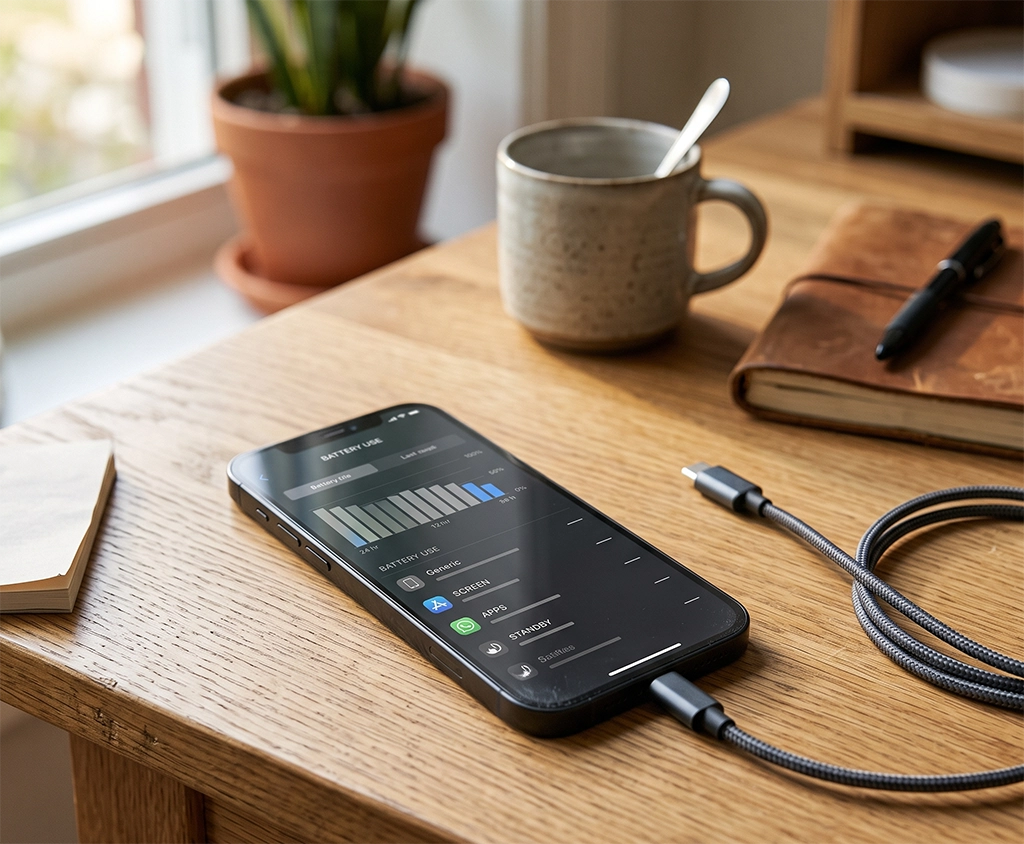
Is Your iPhone Battery Draining Faster Than Before?
You charge your iPhone to 100% in the morning, but the low-battery warning appears before the end of the day. When you find yourself reaching for a charger more often than usual, it is natural to wonder whether the battery needs to be replaced.
A rapidly draining battery, however, does not always mean that the battery has reached the end of its useful life.
Background app activity, longer screen time, poor cellular reception, navigation apps, photo synchronization, software updates, and high screen brightness can all reduce daily battery life.
Before paying for a replacement, it is helpful to learn how to check iPhone battery health and compare the maximum capacity with your actual battery usage.
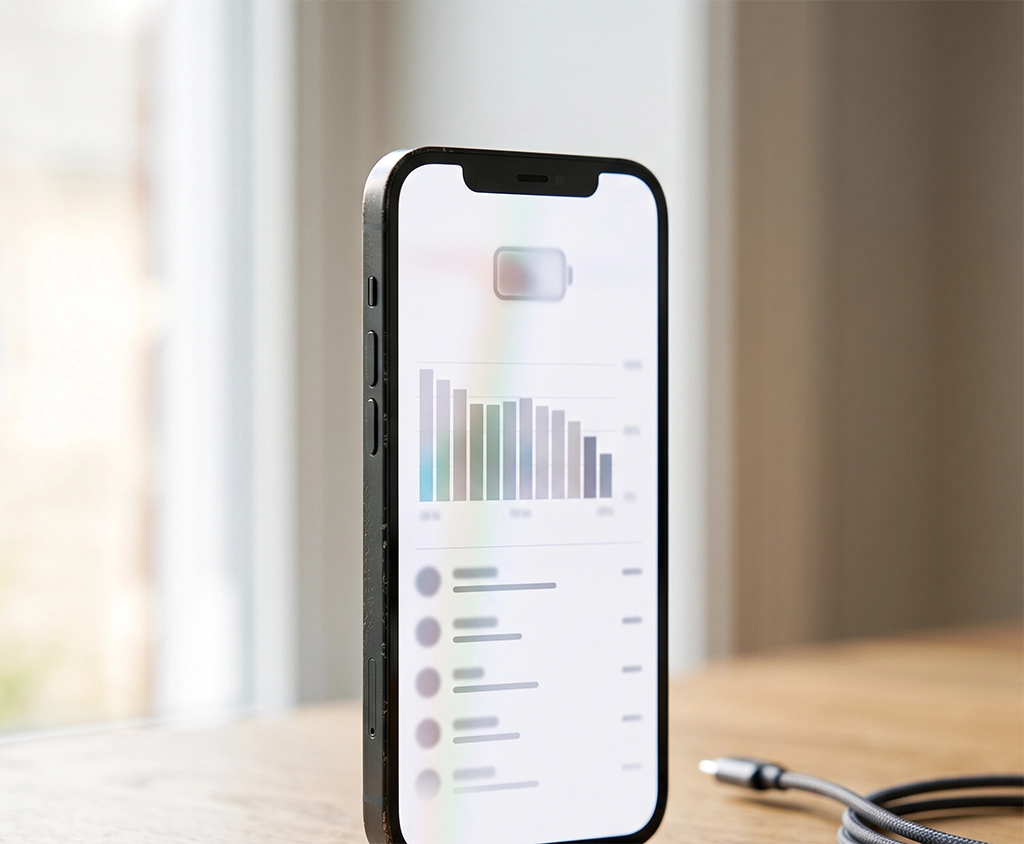
How to Check iPhone Battery Health
You do not need to install a third-party battery app to perform a basic battery health check. The necessary information is available in the iPhone Settings app.
On iPhone 14 and Earlier Models
- Open the Settings app.
- Select Battery.
- Tap Battery Health & Charging.
- Check Maximum Capacity and any information shown under Peak Performance Capability.
On iPhone 15 and Later Models
- Open the Settings app.
- Select Battery.
- Tap Battery Health.
- Review Maximum Capacity, Cycle Count, Manufacture Date, and First Use.
On supported iPhone 15 and later models, the Battery Health menu provides more detailed information than it does on many earlier devices. This additional information can help you estimate how heavily the battery has been used.
Menu names may be slightly different depending on your iPhone model and iOS version. If you cannot find the battery health menu, open Settings, select General, and check both About and Software Update.
Maximum Capacity Is Not the Same as the Current Charge Level
The current battery percentage and Maximum Capacity represent two different measurements.
The battery percentage shown in the status bar tells you how much power is currently available. Maximum Capacity compares the battery’s present storage capacity with its capacity when it was new.
For example, an iPhone with 84% Maximum Capacity can still be charged until the screen displays 100%. However, that does not restore the battery to its original storage capacity.
The phone may be fully charged according to its current capacity, but its real-world operating time could be shorter than it was when the battery was new.
When following instructions on how to check iPhone battery health, make sure you look at Maximum Capacity rather than the battery percentage shown in the status bar.
Should You Replace an iPhone Battery at 80%?
Maximum Capacity of 80% is one of the most frequently discussed iPhone battery replacement thresholds. It is an important reference point, but it does not mean that every battery must be replaced immediately when it reaches this percentage.
Consider the following factors before making a decision:
- The battery’s current Maximum Capacity
- Whether a service or replacement recommendation appears
- How long the iPhone lasts after a full charge
- Whether the iPhone shuts down unexpectedly
- Whether slower app launches or reduced performance are noticeable
- Whether the device is covered by AppleCare+ or another applicable warranty
- Whether the battery condition interferes with work, travel, or daily communication
An iPhone with 83% Maximum Capacity may still last long enough for its owner’s daily routine. Another iPhone with a higher percentage may need inspection if it shuts down unexpectedly or loses power unusually quickly.
The 80% figure should therefore be treated as a useful reference rather than an automatic replacement command. Actual usage, battery messages, performance symptoms, and a professional diagnostic test should also be considered.
How to Check the iPhone Battery Cycle Count
Battery cycle information is available directly in Settings on supported iPhone 15 and later models.
A battery cycle is not the same as the number of times you connect your iPhone to a charger. One full cycle is completed after you have used a cumulative amount equal to 100% of the battery’s capacity.
For example, you might use 60% of the battery one day, recharge it, and then use 40% the next day. Those two periods of use can add up to one complete battery cycle.
A higher cycle count indicates that the battery has accumulated more use, but it should not be used by itself to determine an exact replacement date.
Review the cycle count together with:
- Maximum Capacity
- Daily operating time
- Charging frequency
- Unexpected shutdowns
- Excessive heat
- Service or replacement messages
A heavily used battery can sometimes remain practical, while a battery with fewer cycles may still require inspection if it has been exposed to heat or another damaging condition.
What to Check When Your iPhone Battery Drains Quickly
If Maximum Capacity still appears reasonable, check which apps and system processes are consuming power.
Open Settings and select Battery. Scroll down to review battery usage by app and system activity. Depending on your iOS version, you may be able to compare recent usage periods and see how long each app remained active on screen or in the background.
Battery consumption may increase when you:
- Stream video for long periods
- Play graphics-intensive games
- Use maps or navigation continuously
- Synchronize a large photo or file library
- Allow several apps to access your location
- Spend extended time in an area with poor cellular reception
- Keep the screen at high brightness
- Install a major iOS update
- Restore an iPhone from a backup
- Use a personal hotspot for an extended period
If one app shows unusually high battery usage, check whether an update is available. You can also review its location permissions, notifications, and Background App Refresh settings.
Avoid disabling every background feature at once. This can interfere with messaging, cloud synchronization, navigation, and other useful functions. Start with the app showing the highest unexplained usage and monitor the results for several days.
If your normal usage has not changed but daily battery life continues to decline, battery aging or a hardware issue may be involved.
Signs That an iPhone Battery May Need Replacement
Maximum Capacity is useful, but real-world symptoms often provide a clearer reason to arrange an inspection.
The Battery No Longer Lasts Through Your Normal Day
Battery replacement may be worthwhile if a fully charged iPhone regularly needs a power bank by lunchtime or early afternoon.
The correct decision depends on your routine. Someone who works near a charger may tolerate shorter battery life, while a traveler, driver, photographer, or field worker may benefit from replacing the battery earlier.
The iPhone Shuts Down With Battery Power Remaining
An aging battery may have difficulty supplying the temporary peak power required by the system.
If the iPhone repeatedly turns off even though the screen previously showed remaining charge, arrange an inspection. Cold weather and a low charge level may make this behavior more noticeable.
A Service or Replacement Message Appears
If the Battery Health screen displays a service-related recommendation, contact Apple Support, an Apple Store, or an Apple Authorized Service Provider to discuss diagnostic and replacement options.
A message does not necessarily provide the final repair price. The device may still need to be inspected before the service provider confirms the battery replacement cost.
The Device Becomes Unusually Hot
Some warmth during charging, gaming, video recording, or software updates can be normal. Repeated or excessive heat during light use deserves closer attention.
Stop using and charging the device if you notice possible battery swelling, screen separation, an unusual smell, or deformation of the enclosure.
Do not press the screen back into place or attempt to open the iPhone. Arrange professional service instead.
How to Check the iPhone Battery Replacement Cost
The cost of an iPhone battery replacement depends on several factors:
- The exact iPhone model
- The country or service region
- AppleCare+ coverage
- Warranty status
- Other damage to the device
- The service provider
- Shipping or collection requirements
- Local taxes and service charges
Use the following process to obtain a more reliable estimate:
- Open Settings.
- Select General.
- Tap About.
- Confirm the exact model name.
- Visit Apple’s iPhone battery service page for your region.
- Select the correct model.
- Review your warranty or AppleCare+ status.
- Contact the selected service location to confirm the estimate and battery availability.
Make sure you distinguish between the standard, Plus, Pro, and Pro Max versions. Battery service pricing can vary by model.
Prices shown in search results, forum posts, and older blog articles may no longer be accurate. Check the official regional service page again when you are ready to book an appointment.
An online estimate may also differ from the final amount. Other damage discovered during inspection, shipping fees, part availability, and the pricing policies of individual service providers can affect the total cost.

Apple Service vs. an Independent Repair Shop
Price should not be the only factor when comparing battery replacement services.
Battery Parts and Repair Information
Ask what type of battery will be installed and whether battery health information will continue to appear normally.
If you expect to use official repair services in the future, ask whether the proposed repair may affect future service options, device messages, trade-in eligibility, or resale value.
Repair Warranty
Confirm the warranty period and what it covers.
Ask what happens if the new battery drains quickly, charging becomes unreliable, the phone is not assembled correctly, or another repair-related issue appears.
Additional Charges
Ask whether the quoted price includes:
- Diagnostic fees
- Labor
- Taxes
- Sealing or adhesive work
- Shipping
- Additional damaged parts
A low advertised price may not represent the final amount.
Parts Availability and Repair Time
Same-day service may not be available at every location. Repair time can depend on appointment volume, model, battery inventory, and the condition of the device.
If you need the iPhone for work or travel, confirm part availability and the expected collection time before visiting.

Charging Habits That May Help Protect Battery Lifespan
All rechargeable batteries age over time. You cannot prevent battery aging completely, but you can reduce unnecessary exposure to heat and prolonged charging stress.
Consider these practical habits:
- Avoid charging an iPhone inside a hot vehicle
- Keep the device away from strong direct sunlight
- Check whether a thick case is trapping excessive heat during charging
- Use Optimized Battery Charging when appropriate
- Avoid running demanding games for long periods while charging
- Consider a charging limit on supported iPhone models
- Do not place a hot iPhone in a refrigerator or freezer
- Do not store an iPhone for a long time with a completely empty battery
- Use compatible and reliable charging equipment
You do not need to follow a strict rule requiring every charge to begin at exactly 20% and stop at exactly 80%.
For most users, a practical combination of Optimized Battery Charging, a suitable charging limit, heat management, and normal charging habits is easier to maintain.
Your daily needs still matter. If you frequently travel or work away from a power source, charging to 100% when necessary may be more useful than following an inconvenient routine.
What to Do Before an iPhone Battery Replacement
Prepare the following items before taking your iPhone in for service:
- Create a current iCloud or computer backup
- Confirm your Apple Account credentials
- Check the exact iPhone model
- Review the warranty and AppleCare+ status
- Take a screenshot of the Battery Health screen
- Record any shutdown, charging, or overheating symptoms
- Confirm the appointment time and service location
- Ask whether the correct battery is in stock
- Ask how long the repair is expected to take
- Remove unnecessary cases and accessories if instructed
Battery replacement does not always erase the data stored on an iPhone. Nevertheless, creating a backup protects important photos, contacts, messages, and files if additional service becomes necessary.
Follow the service provider’s instructions regarding Find My, device security, and accessories. Do not disable security features or share passwords unless the official service process specifically requires an action through the device.
iPhone Battery Health and Replacement Checklist
Learning how to check iPhone battery health begins with opening the Battery section in Settings.
Review the following information before deciding whether to replace the battery:
- Maximum Capacity
- Service or replacement recommendations
- Battery usage by app
- On-screen and background activity
- Cycle Count on supported models
- Daily operating time
- Unexpected shutdowns
- Heat or physical changes
- Warranty and AppleCare+ status
- Current regional replacement cost
A battery approaching 80% Maximum Capacity does not always require immediate replacement if the iPhone still meets your daily needs.
On the other hand, an iPhone with a higher Maximum Capacity may still need professional inspection if its battery drains abnormally quickly, the device becomes excessively hot, or unexpected shutdowns continue.
Before booking a battery replacement, confirm the exact model and compare the latest estimate, parts, service warranty, availability, and turnaround time. This makes it easier to avoid unnecessary spending and choose a replacement time that fits your actual usage.
If you are still unsure, prepare your iPhone model, Maximum Capacity, Cycle Count if available, main symptoms, and AppleCare+ status before contacting Apple Support or your preferred service provider.