
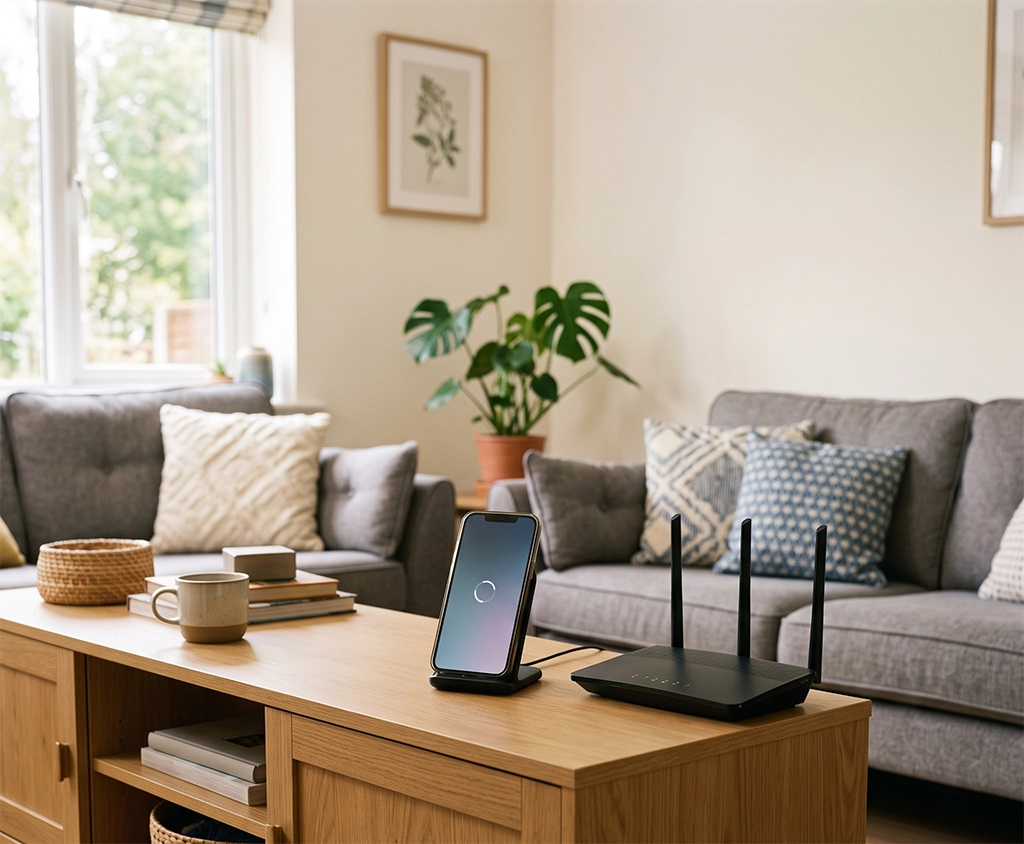
A slow WiFi connection on your phone can be frustrating, especially when the WiFi icon appears normal. Videos may pause to buffer, apps can take too long to download, cloud backups may stall, and video calls can suddenly become unstable.
It is easy to assume that your internet plan is too slow or that your smartphone is faulty. However, slow smartphone WiFi can have several causes, including the phone’s network settings, router placement, frequency band, background activity, wireless interference, and the number of connected devices.
That is why buying a new router or WiFi extender should not be your first step. A few simple tests can help you identify whether the problem comes from your phone, router, home layout, or internet connection.
This guide explains how to fix slow WiFi on a smartphone with a practical troubleshooting process that beginners can follow. Work through the steps in order before spending money on new equipment.
1. Test Your WiFi Speed Under Consistent Conditions
Before changing any settings, confirm whether the connection is actually slow.
Perceived speed can vary depending on the app you are using. A slow-loading website, an overloaded streaming service, or a temporary app problem may feel like a WiFi issue even when your home network is working normally.
Stand close to your router and run a speed test at least three times. Use the same location and device for every test so that you can compare the results fairly.
Before testing, temporarily pause the following activities:
- VPN connections
- App downloads and updates
- Cloud photo or video backups
- Large file transfers
- Video streaming on other devices
- Game downloads and system updates
Do not look only at the download speed. Check the download speed, upload speed, and latency together.
Download Speed
Download speed affects web browsing, video streaming, app installation, and file downloads.
If videos continually buffer or websites load slowly, insufficient download speed may be part of the problem.
Upload Speed
Upload speed is important for cloud backups, sending large files, livestreaming, and video calls.
A connection can provide acceptable download performance while still having poor upload performance. This may explain why streaming works but video calls or photo backups feel unusually slow.
Latency
Latency is the time it takes for data to travel from your phone to a server and back.
Even when your download speed appears sufficient, high or unstable latency can make games, calls, and interactive apps feel sluggish.
Run another test at a different time of day. If the connection is fast in the morning but consistently slow in the evening, network congestion or heavy household usage may be affecting performance.
2. Compare Your Phone with Another Device
Testing another device on the same WiFi network is one of the fastest ways to narrow down the cause.
Connect another smartphone, tablet, or laptop to the same network. Place it in the same location and run the same speed test.
If other devices are fast but one smartphone is slow, focus on the affected phone. Its network settings, operating system, VPN, security software, or background apps may be responsible.
If every connected device is slow, the issue is more likely related to the router, modem, internet connection, or local wireless environment.
This comparison can prevent unnecessary troubleshooting. There is little value in repeatedly changing phone settings if laptops, TVs, and other phones are experiencing the same problem.
3. Turn WiFi Off and Restart Your Smartphone
Temporary connection errors can often be resolved with a simple restart.
Turn off WiFi on your smartphone, wait about 10 seconds, and turn it on again. If there is no improvement, enable Airplane Mode, wait briefly, and then disable it.
Restart the smartphone if the connection remains slow.
A restart closes temporary background processes and allows the operating system to establish a new connection to the router. This is particularly useful if the phone has been running continuously for a long time.
After restarting, reconnect to WiFi and repeat the speed test in the same location.
4. Forget the WiFi Network and Reconnect
Your phone saves information about previously connected WiFi networks. If that saved information conflicts with a new router password, security setting, or network configuration, the connection may become unstable.
Open your phone’s WiFi settings and select the connected network. Choose the option labeled “Forget,” “Forget This Network,” or “Remove.”
Search for the WiFi network again and enter the password to reconnect.
Before removing the network, make sure you know the correct password. If you do not know it, check the label on the router, the installation paperwork from your internet provider, or the router management app.
Forgetting a network does not normally change the router itself. It only removes the saved connection information from your phone.
5. Switch Between 2.4 GHz and 5 GHz
Many home routers provide both 2.4 GHz and 5 GHz WiFi. These frequency bands have different strengths, and selecting the wrong one for your location can affect performance.
When to Use 2.4 GHz
The 2.4 GHz band generally provides a longer range and may reach through walls more effectively than 5 GHz.
It can be useful when your phone is far from the router or in a different room. However, it is also more vulnerable to congestion because many home networks and wireless devices use the same frequency range.
Use 2.4 GHz when:
- You are several rooms away from the router
- The WiFi signal becomes weak behind multiple walls
- Connection stability is more important than maximum speed
- Smart home devices only support 2.4 GHz
When to Use 5 GHz
The 5 GHz band can provide faster performance when the smartphone is relatively close to the router.
However, its range may be shorter, and walls or other obstacles can have a greater effect on the signal.
Use 5 GHz when:
- You are in the same room as the router
- You need faster downloads or high-quality streaming
- The 2.4 GHz band is crowded
- Your smartphone and router both support 5 GHz
Some routers display separate network names. For example, one network name may end in “5G” or “5GHz.”
Other routers use one network name and automatically move connected devices between frequency bands. This feature may be described as band steering, smart connect, or automatic band selection.
If your router supports 6 GHz and your smartphone is compatible with WiFi 6E or WiFi 7, you may also have access to a 6 GHz network. It can offer less congestion at short range, but it is more sensitive to walls and distance.
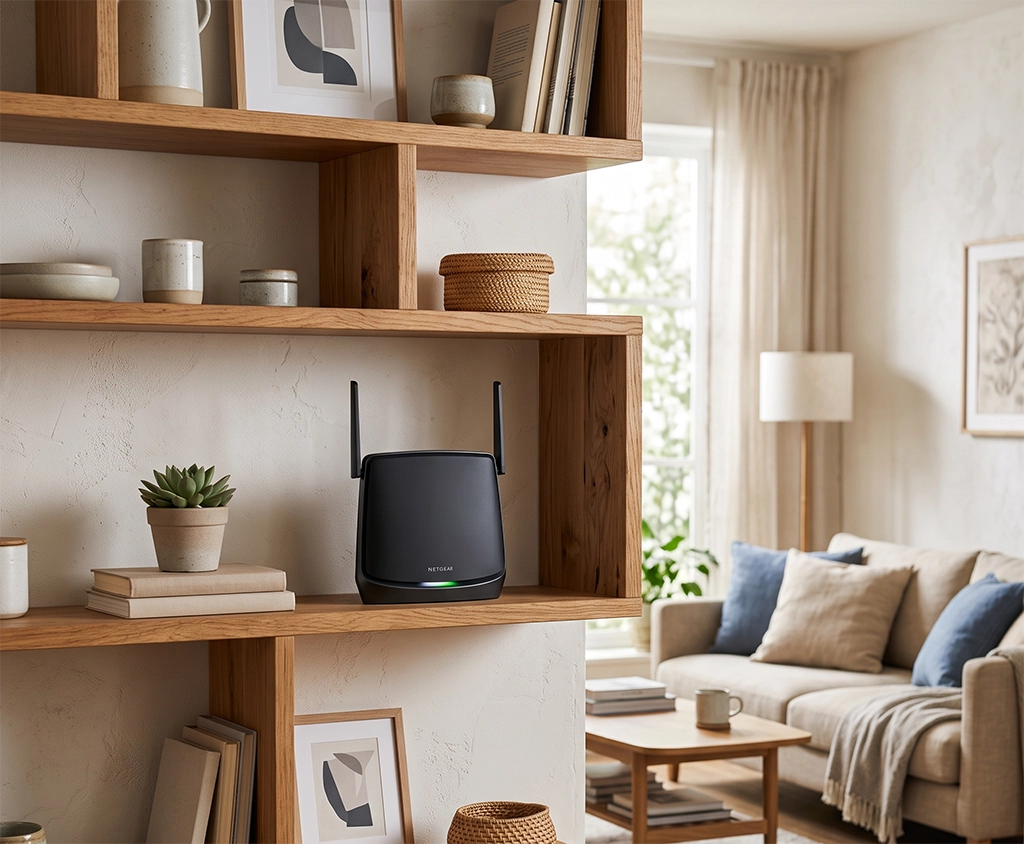
6. Move the Router to a Better Location
Router placement can have a significant effect on smartphone WiFi performance.
A high-speed router cannot perform well if it is hidden behind a television, placed inside a cabinet, or installed in a distant corner of the home.
Avoid placing the router:
- On the floor
- Inside a closed cabinet
- Behind a television
- Next to large metal objects
- Near thick concrete walls
- Close to a microwave oven
- In a basement corner
- Behind large home appliances
Place it in an open, elevated, and relatively central location whenever possible. A shelf or table is usually better than the floor.
Do not cover the router with books, boxes, decorative objects, or other equipment. The area around it should remain open to reduce interference and allow heat to escape.
If your router has external antennas, experiment with different positions. Instead of pointing every antenna in exactly the same direction, try a combination of vertical and horizontal orientations.
If the connection is fast next to the router but slows dramatically in another room, the problem is more likely to be signal coverage than your internet plan.
7. Check Background Apps and VPN Connections
Your smartphone may be using a large amount of bandwidth even when you are not actively downloading anything.
Common background activities include:
- Automatic photo backups
- Cloud video synchronization
- App updates
- Operating system updates
- Offline map downloads
- Podcast downloads
- Music synchronization
- Large messaging app backups
Pause these activities and run the speed test again.
You should also temporarily disable your VPN. A VPN sends your internet traffic through an additional server, so performance can vary depending on the server’s location, capacity, and network conditions.
If WiFi performance improves significantly when the VPN is disabled, the home WiFi connection may not be the main problem. Try choosing a closer VPN server or changing the VPN protocol in the provider’s app.
Other household devices can also affect the available bandwidth. A laptop downloading a large game, a television streaming high-resolution video, or a security camera uploading footage may reduce the speed available to your phone.
Check whether the slowdown occurs only when several people or devices are using the network.
8. Restart the Router and Modem Correctly
Routers and modems can develop temporary connection problems after operating continuously for long periods.
Turn off both devices and disconnect their power cables. Wait approximately 30 seconds before reconnecting them.
If you have a separate modem and router, turn on the modem first. Wait for its connection lights to stabilize, and then turn on the router.
Allow several minutes for the network to become fully available. Reconnect your smartphone and repeat the speed test.
Avoid switching the equipment on and off repeatedly within a short period. It may take time for the modem to reconnect to the internet provider.
You should also avoid pressing the router’s reset button unless a factory reset is genuinely necessary. A factory reset may erase the WiFi name, password, security settings, parental controls, and other custom settings.
Restarting and factory-resetting are not the same. Restarting preserves your settings, while a factory reset usually removes them.
9. Update the Router Firmware and Check Connected Devices
Router firmware affects performance, security, compatibility, and connection stability.
Open the router manufacturer’s management app or administrator page and check for a firmware update. The steps vary by manufacturer, so use the official instructions for your model.
Do not disconnect the router or interrupt the update while new firmware is being installed.
The administration page should also show a list of connected devices. Review that list and look for devices you do not recognize.
An unknown connection does not always mean that someone has accessed your network. Phones, televisions, speakers, and smart home products may appear under unclear model numbers. Compare device identifiers carefully before removing anything.
If you still see an unknown device, change the WiFi password and reconnect only the devices you trust.
You should also change the router’s administrator password if it still uses a default password. The administrator password controls access to the router settings and may be different from the password used to join the WiFi network.
For wireless security, use WPA2 or WPA3 when supported by your router and devices. Very old security modes should be avoided when possible.

10. Decide Whether You Need an Extender, Mesh WiFi, or New Router
Learning how to fix slow WiFi on a smartphone does not mean that you always need to purchase the most expensive router.
The right solution depends on where the problem occurs, the size of the home, the number of walls, and the number of connected devices.
Choose a WiFi Extender for One Small Dead Zone
A WiFi extender may be suitable when the signal is weak in one room, one end of a hallway, or a small isolated area.
Place the extender where it can still receive a stable signal from the router. Do not place it directly inside the dead zone if the original router signal is already extremely weak there.
A practical location is usually between the router and the problem area.
An extender can be affordable, but it may not provide the same seamless roaming or overall performance as a well-designed mesh system. Some extenders also create a separate network name, requiring users to switch networks manually.
Choose Mesh WiFi for Multiple Rooms or Floors
A mesh WiFi system may be more suitable for a larger home, a long floor plan, multiple dead zones, or a property with more than one level.
Mesh systems use several units that work together as one network. This can make it easier to move through the home while keeping the smartphone connected.
The position of each mesh unit still matters. Placing units too far apart can create a weak link between them.
If possible, use wired Ethernet backhaul between mesh units. A wired connection can improve reliability because the units do not have to use part of their wireless capacity to communicate with one another.
Replace the Router When It Is Outdated or Unreliable
A new router may be worth considering when:
- The current router frequently disconnects
- Firmware support has ended
- It cannot handle the number of connected devices
- It does not support the WiFi capabilities of your newer devices
- Its Ethernet ports are slower than your internet plan
- Performance remains poor at close range after troubleshooting
- The router is overheating or restarting unexpectedly
A WiFi 6 or newer router can be useful in a household with many recent phones, tablets, computers, televisions, and smart devices.
However, a new router cannot automatically overcome every limitation. Your actual speed will still depend on the internet plan, smartphone capabilities, distance, interference, home layout, and network usage.
A router advertised with a very high combined wireless speed does not guarantee that one smartphone will reach that same number. Marketing specifications often combine theoretical capacity across multiple bands.
When to Contact Your Internet Provider
Contact your internet provider if every device remains slow even when tested close to the router.
If possible, connect a computer directly to the router or modem with an Ethernet cable. Run several tests at different times.
If the wired connection is also consistently slow, the problem may involve the modem, internet line, account provisioning, or local provider network.
You should also request support when:
- The modem displays a warning light
- The internet disconnects repeatedly
- Wired and wireless devices are both affected
- Performance drops at the same time every day
- Restarting the modem provides only temporary improvement
- The measured speed remains far below the expected range
Prepare the following information before contacting support:
- Your internet plan
- Modem manufacturer and model
- Router manufacturer and model
- The times when the problem occurs
- Results from tests near the router
- Results from other phones or computers
- Wired Ethernet test results
- Whether the problem affects one device or every device
Providing specific information can help the support representative distinguish between a WiFi coverage problem and an internet line problem.
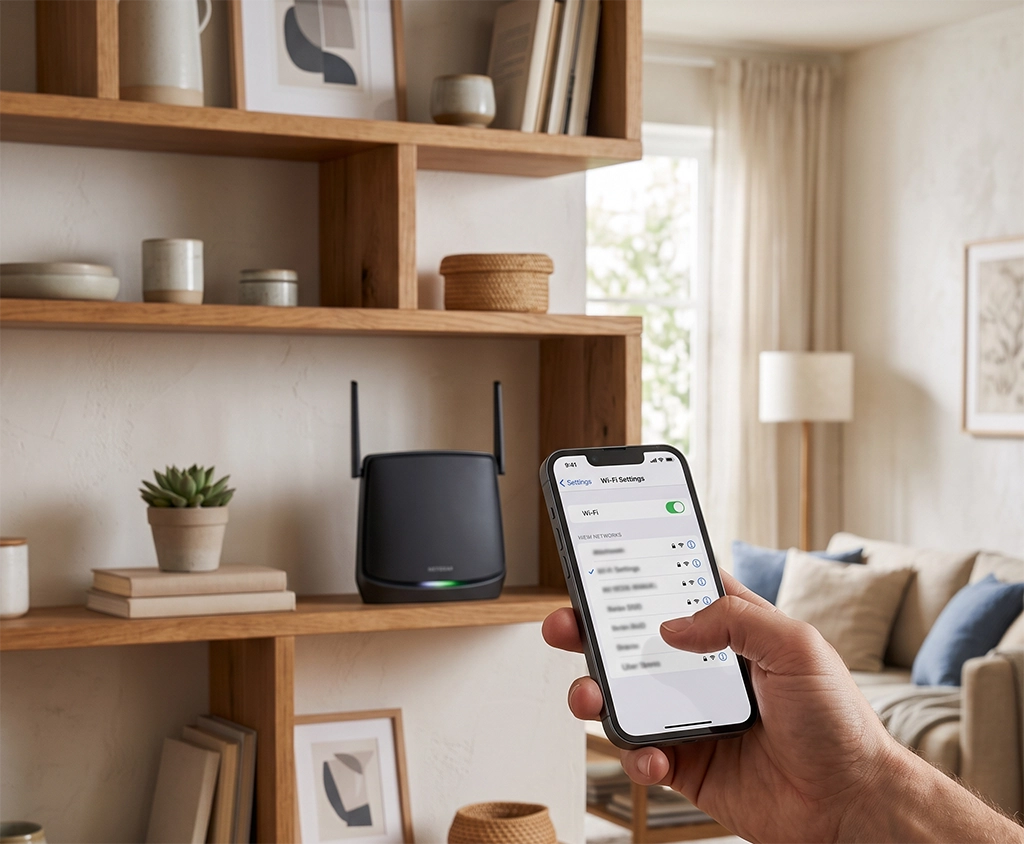
Quick Troubleshooting Order
If you want the shortest practical process, follow these steps in order:
- Stand next to the router and run three speed tests.
- Test another phone or laptop in the same location.
- Turn WiFi off and on.
- Restart the affected smartphone.
- Forget the WiFi network and reconnect.
- Compare 2.4 GHz and 5 GHz.
- Pause backups, updates, downloads, and VPN connections.
- Restart the modem and router.
- Update the router firmware and review connected devices.
- Test a wired connection or contact the internet provider.
This order begins with free, low-risk actions and leaves equipment purchases until the end.
Final Summary
When your phone’s WiFi is slow, first determine whether the problem affects one device or the entire network.
Test the connection close to the router and compare the results with another smartphone or computer. Then restart the phone, reconnect to the WiFi network, switch between 2.4 GHz and 5 GHz, and temporarily pause background apps and VPN connections.
If all devices are slow, restart the router and modem. Check the router’s placement, firmware, security settings, and connected device list.
A WiFi extender may help with one small dead zone. A mesh WiFi system may be a better choice for several rooms, multiple floors, or a home with difficult coverage. Router replacement is most appropriate when the existing device is outdated, unstable, unsupported, or unable to handle the household’s devices.
If wireless and wired connections are both slow, contact your internet provider before purchasing new WiFi equipment.
Following this process can help you avoid unnecessary purchases and select a solution that matches your actual home environment.
Before asking a retailer or internet provider for a recommendation, write down your home size, number of rooms, wall construction, internet plan, current router model, and approximate number of connected devices. These details make it easier to choose an appropriately sized router or mesh system without paying for features you are unlikely to use.