
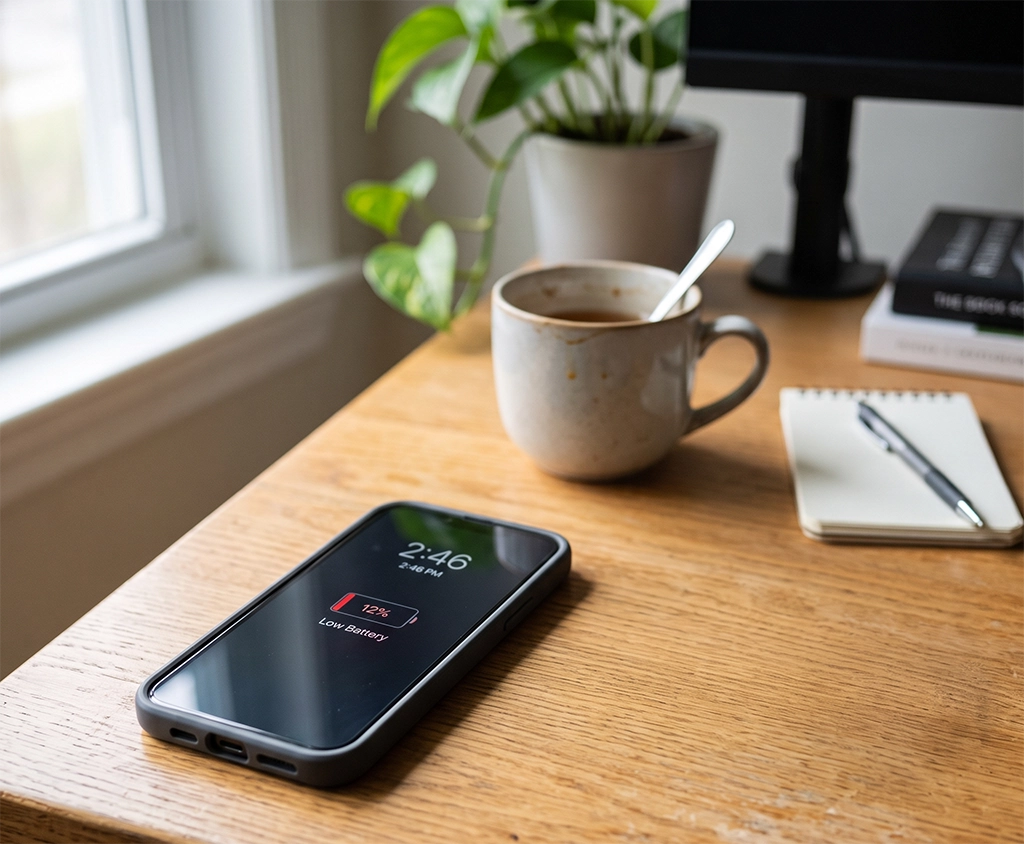
If your smartphone is fully charged in the morning but runs low before the afternoon is over, it is easy to assume that the battery needs to be replaced.
The problem becomes even more frustrating when your phone usage has not changed, but the battery suddenly starts draining much faster. You may wonder whether you need a new battery, a portable charger, or even a new smartphone.
However, fast battery drain does not always mean the battery itself is defective. Screen brightness, background app activity, location permissions, network conditions, and recent software updates can all reduce battery life.
Before paying for a battery replacement, work through the smartphone battery drain settings below. In many cases, a few simple adjustments can noticeably improve daily battery life.
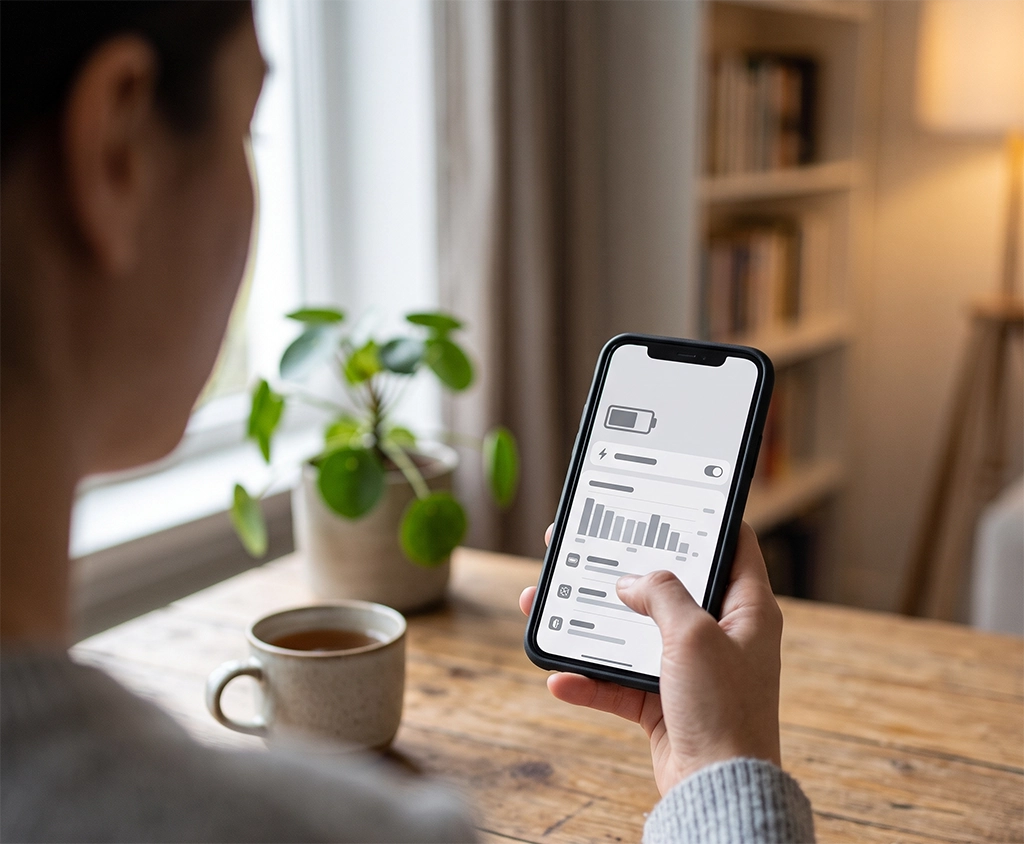
1. Check Which Apps Are Using the Most Battery
The first step is to identify which apps are consuming the most power.
On an iPhone, you can usually check this information by following this path:
Settings → Battery → Battery Usage by App
On a Samsung Galaxy phone, the usual path is:
Settings → Battery and Device Care → Battery → Battery Usage
The exact menu names may vary depending on your smartphone model and operating system version.
It is normal for video streaming, gaming, navigation, camera, and social media apps to appear near the top of the list if you have used them for a long time.
However, an app may be causing a problem if you rarely use it but it still appears near the top of the battery usage list. Pay particular attention to apps showing unusually high background activity.
If you find a suspicious app, try the following steps:
- Update the app to the latest version.
- Check its background activity permission.
- Enable battery optimization for the app.
- Restart your smartphone.
- Reinstall the app if the problem continues.
- Delete the app if you no longer use it.
Frequently force-closing every app is not always the best solution. It is more effective to review battery usage first and manage only the apps showing unusual activity.
2. Adjust Screen Brightness and Screen Timeout
The display is one of the biggest power-consuming components in a smartphone.
Keeping the brightness at maximum or using a long screen timeout can cause the battery to drain faster than expected. This is especially noticeable on large, high-resolution displays.
Try using automatic or adaptive brightness. You can also reduce the brightness manually when using your phone indoors.
Set the screen timeout to 30 seconds or one minute if that feels comfortable. This reduces the amount of time the screen remains active when you are not using the device.
If your smartphone supports a 90Hz, 120Hz, or higher refresh rate, compare the battery performance with the standard display mode. A lower refresh rate may make scrolling feel slightly less smooth, but it can help extend battery life on some devices.
Do not change every display setting at the same time. Adjust one setting and monitor your phone for a day. This will make it easier to determine which change has the greatest effect.
3. Reduce Background App Activity
Some apps continue working even when they are not visible on the screen.
They may synchronize data, upload files, refresh content, check your location, or download updates in the background. These activities can gradually drain the battery throughout the day.
On Android Phones
Android smartphones normally include battery optimization settings for individual apps.
Keeping an app set to “Optimized” allows the system to manage its background activity. On Samsung Galaxy devices, apps that are rarely used can also be placed in Sleeping Apps or Deep Sleeping Apps.
Use these settings carefully. Restricting messaging, email, calendar, security, authentication, or work apps too aggressively may delay important notifications.
On iPhone
You can review Background App Refresh by following this path:
Settings → General → Background App Refresh
You do not necessarily need to turn the feature off completely. Start by disabling it for shopping, games, travel, community, or entertainment apps that you rarely use.
This approach reduces unnecessary activity without affecting the apps you depend on for real-time information.
4. Review Location Permissions
Apps with continuous access to location services may contribute to smartphone battery drain.
Check whether shopping, food delivery, photo editing, travel, community, or unused navigation apps have permission to access your location at all times.
Some apps genuinely need continuous location access. Navigation apps may require it during a journey, while fitness apps may need it to record an outdoor workout.
However, most apps work properly when location access is set to “While Using the App.”
Review the location permissions for the following types of apps:
- Shopping apps
- Food delivery apps
- Photo and video apps
- Social media apps
- Travel apps
- Weather apps
- Navigation apps you no longer use
If an app does not need your precise location, consider allowing only an approximate location where that option is available.
Turning off location services completely can make useful features unavailable. Managing permissions app by app provides a better balance between convenience, privacy, and battery life.
5. Reduce Unnecessary Notifications and Account Syncing
Every notification can activate the screen, sound, vibration, or network connection.
A single notification uses very little power, but dozens or hundreds of notifications throughout the day can contribute to battery drain.
Review notifications from apps you rarely use, particularly shopping, gaming, news, coupon, and community apps.
If several email, calendar, or cloud storage accounts are connected to your smartphone, consider disabling automatic synchronization for accounts you no longer use.
However, avoid disabling notifications that may be important, including:
- Phone calls and text messages
- Frequently used messaging apps
- Banking and payment alerts
- Security and login notifications
- Work email and calendar reminders
- Emergency alerts
The goal is not to block every notification. It is to prevent unimportant apps from regularly waking the screen and running in the background.
Check Your Mobile Signal and 5G Environment
Weak mobile reception can also cause a smartphone battery to drain quickly.
In underground areas, elevators, remote locations, parking structures, and the interior of large buildings, a phone may repeatedly search for a stronger mobile connection. This ongoing network activity can increase power consumption.
If the problem mainly occurs in one location, the battery may not be defective. The mobile network environment may be the more likely cause.
Turn off a mobile hotspot when you are not using it. You can also test whether battery performance changes when switching from 5G to LTE in an area with unstable 5G coverage, provided your carrier and device allow that option.
There is no need to repeatedly switch Wi-Fi and Bluetooth on and off without a clear reason. First, check whether the battery usage menu shows unusually high consumption from the mobile network or a related system service.
Use Battery Saver When Necessary
Battery-saving modes are useful when you cannot charge your phone for several hours.
On an iPhone, this feature is called Low Power Mode. Android phones generally call it Battery Saver, while Samsung Galaxy devices include a Power Saving mode.
Depending on the device, enabling a battery-saving mode may:
- Reduce background app activity
- Limit automatic downloads
- Adjust email and account synchronization
- Reduce certain visual effects
- Lower screen brightness
- Limit refresh rate or processing performance
- Delay some app notifications
Battery Saver does not need to remain active at all times. Continuous use may affect app notifications, background syncing, display performance, or overall responsiveness.
It is most useful when the battery is low, during a long trip, or when you know that a charger will not be available.
Monitor Battery Drain After a Software Update
A smartphone may temporarily use more power after an operating system update.
The device may be reorganizing files, optimizing apps, analyzing photos, rebuilding search indexes, or synchronizing information in the background. During this period, the phone may also feel warmer than usual.
If the problem started immediately after an update, restart the phone and make sure all apps are up to date. Then monitor battery performance for the next few days.
Do not rush to replace the battery immediately after a system update.
If abnormal battery drain continues after several days, review the highest-consuming apps again. A particular app may not yet be working efficiently with the new operating system version.
Check Battery Health and Replacement Timing
If you have reviewed all the settings to check when your smartphone battery drains fast but the problem continues, the battery itself may be aging.
Rechargeable lithium-ion batteries gradually lose their ability to store energy. As a battery ages, the phone may need to be charged more frequently even if your usage remains unchanged.
Look for the following warning signs:
- Battery life has become noticeably shorter under similar conditions.
- The phone turns off even when battery power remains.
- Battery percentage drops suddenly or irregularly.
- The phone becomes unusually hot during normal charging.
- Battery drain continues even when the phone is barely used.
- The display or back panel begins separating from the device.
- Battery performance does not improve after apps and settings are optimized.
iPhone users can review battery health information in the battery settings. The exact wording and available information may depend on the iPhone model and iOS version.
Battery diagnostics on Android phones vary by manufacturer and model. Samsung Galaxy users can check Battery and Device Care or use the device diagnostics provided through Samsung Members. Other manufacturers may provide a separate support or diagnostic application.
If the back panel appears swollen or the screen begins separating from the frame, stop charging and using the phone. Contact the manufacturer’s authorized service center for inspection.
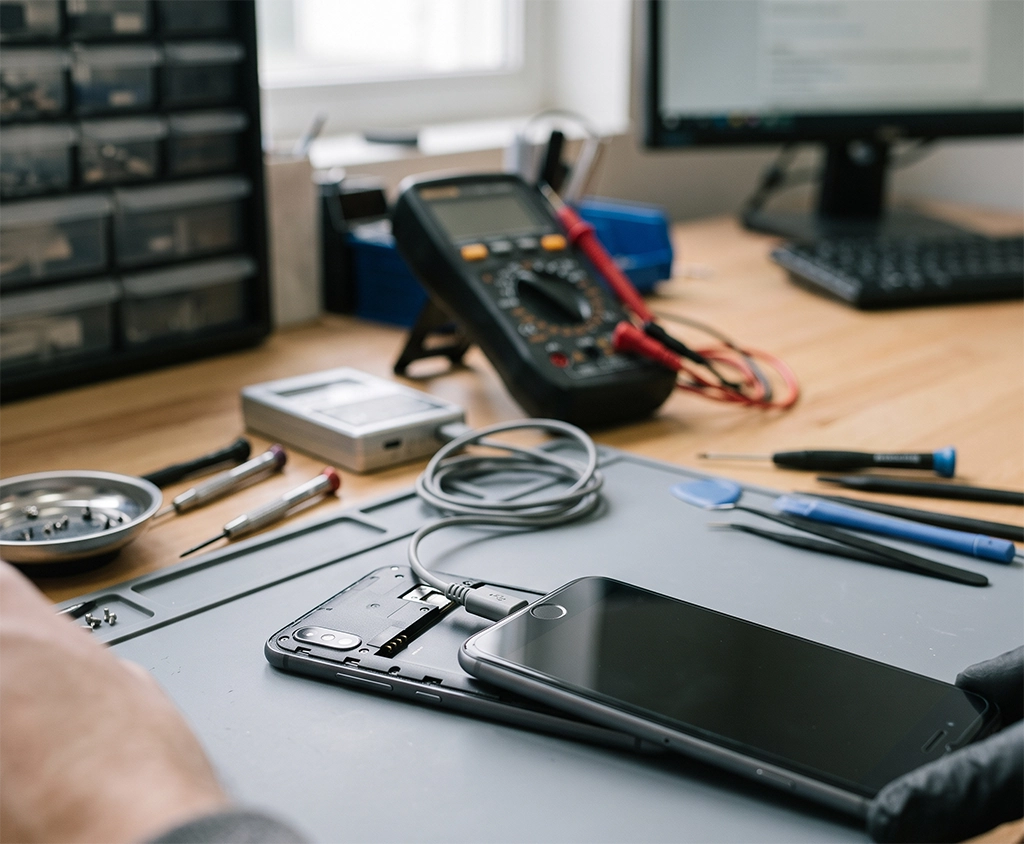
How to Test Your Phone Before Replacing the Battery
Follow this order to make the troubleshooting process easier:
- Check battery usage by app.
- Identify apps with unusually high background activity.
- Update, optimize, or remove problematic apps.
- Adjust screen brightness and screen timeout.
- Review location permissions.
- Disable unnecessary notifications and account syncing.
- Check whether the problem occurs in areas with weak reception.
- Test Battery Saver under normal usage.
- Monitor the phone for at least one full day.
- Request a professional battery diagnosis if the problem continues.
Do not judge battery performance only by how much the percentage drops in one day.
Compare screen-on time, apps used, network conditions, charging patterns, and overall activity. A day spent watching videos or using navigation cannot be accurately compared with a day when the phone remains mostly idle.
Should You Buy a Power Bank or Replace the Battery?
A power bank can be useful if your battery is healthy but your daily usage is demanding. It may be a practical option for travel, navigation, photography, gaming, or long workdays away from a charger.
However, a power bank is not a permanent solution for a severely degraded or damaged battery.
Consider a battery inspection or replacement when the phone shuts down unexpectedly, becomes unusually hot, shows physical swelling, or cannot provide reasonable usage time after the settings have been optimized.
When choosing a charger or power bank, check compatibility with your smartphone’s charging standard. Avoid selecting a product based only on the highest advertised wattage. The device, charging cable, and power adapter must all support compatible charging specifications for the expected speed.
Final Summary
The most important settings to check when your smartphone battery drains fast are battery usage by app, display brightness, screen timeout, background activity, location permissions, notifications, account syncing, network conditions, and Battery Saver.
Change one or two settings at a time, and then use the phone under similar conditions for at least a full day. This makes it easier to identify the actual source of the problem.
If battery life improves, you may not need an immediate battery replacement. If fast battery drain continues with unexpected shutdowns, serious overheating, or physical changes to the device, arrange an inspection through an authorized service center.
A structured check can help you avoid unnecessary repair costs, improve everyday battery life, and choose the right time for a battery replacement.