
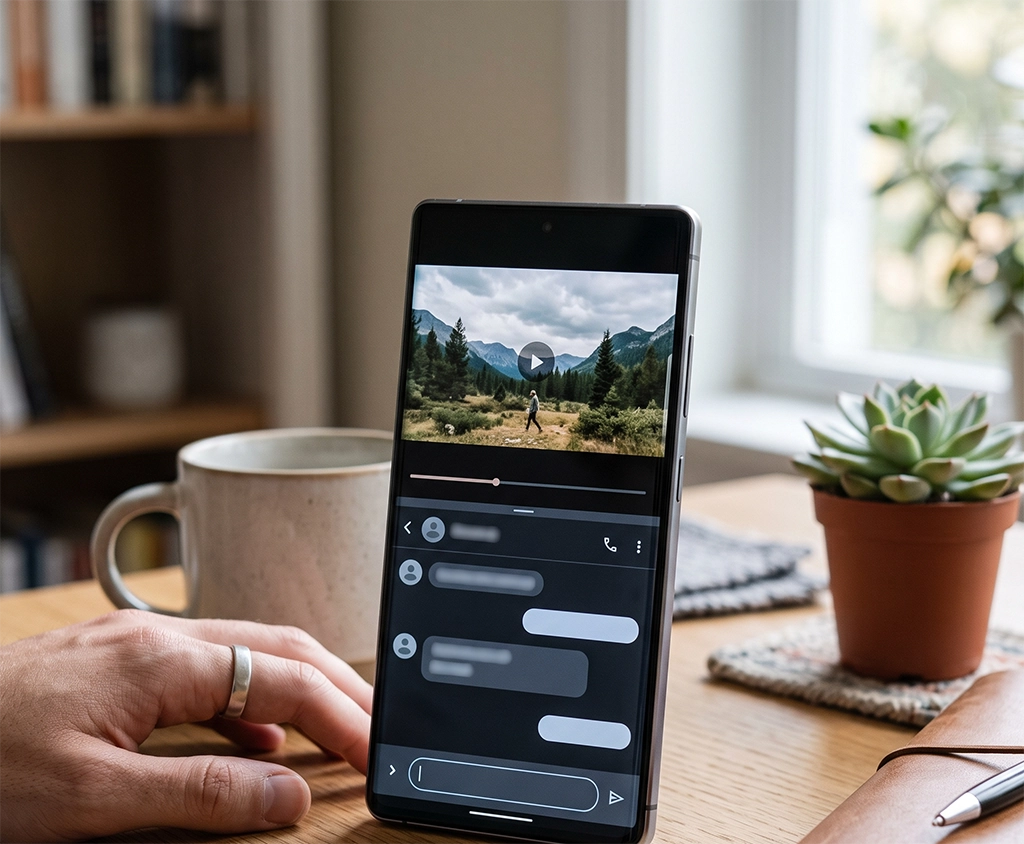
Have you ever switched back and forth between apps just to reply to a message while watching a video or copy information from a website into a notes app?
Samsung Galaxy smartphones include a split-screen feature that allows you to use two apps on the same screen. You do not need to install a separate app or purchase an additional service. The feature is built into compatible Galaxy devices and is commonly found under the Multi Window settings.
This guide explains how to use split screen on Samsung Galaxy smartphones, including how to open two apps, resize each window, switch app positions, save an app pair, close split screen, and fix common problems.
Menu names and available options may vary depending on your Galaxy model, Android version, One UI version, and the apps you are using.
What Is Split Screen on Samsung Galaxy?
Split screen divides your Galaxy smartphone display into two sections so that you can run two supported apps at the same time.
For example, you can play a YouTube video in the upper section while using a messaging app in the lower section. You can also browse the web with Samsung Internet or Google Chrome while taking notes in Samsung Notes.
On Samsung devices, the feature may also be described as Multi Window. Depending on the Galaxy model, Multi Window can include split-screen mode, pop-up view, app pairs, and additional multitasking controls.
The main benefit is that you can reduce the number of times you switch between apps. This can make simple tasks such as researching, messaging, checking schedules, and comparing prices more convenient.
Not every app supports split-screen mode. Some banking, authentication, security, camera, streaming, and gaming apps may limit Multi Window access.
How to Use Split Screen on Samsung Galaxy
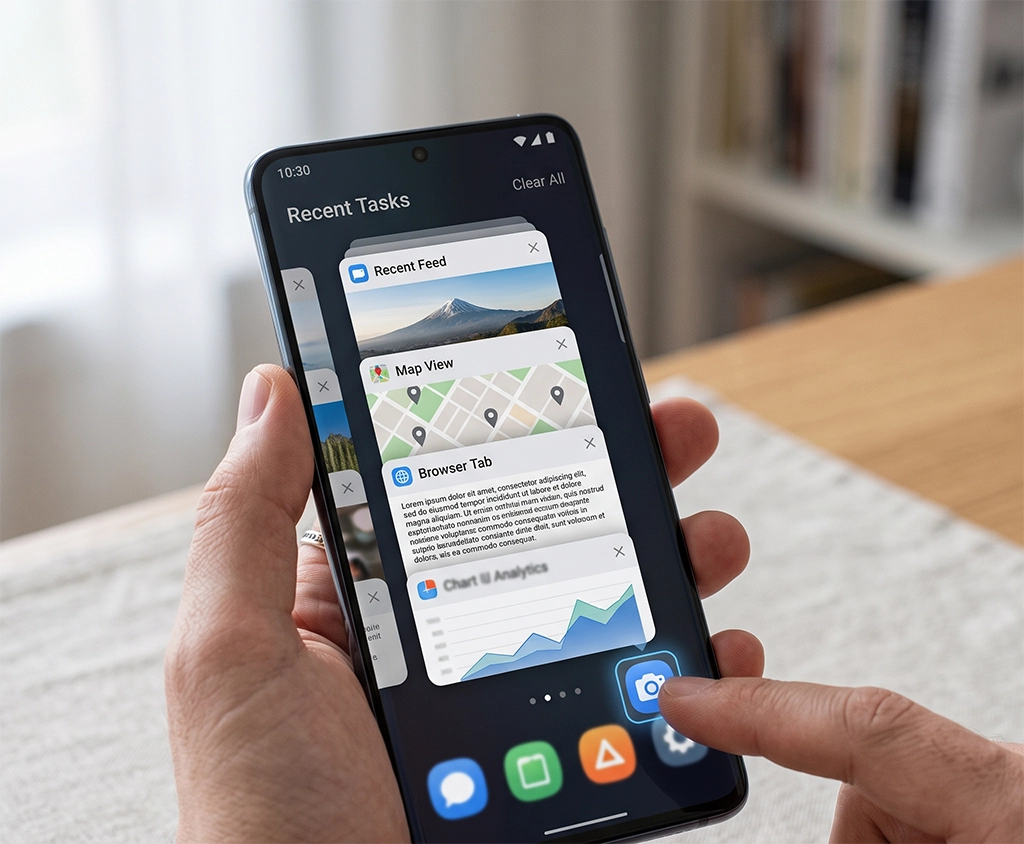
The most common way to start split-screen mode is through the Recent Apps screen.
1. Open the First App
Open the app that you want to place in the upper section of the screen.
For example, open YouTube first if you want to watch a video while replying to messages. If you want to research a topic while taking notes, open Samsung Internet or Google Chrome first.
You only need to open the app briefly so that it appears in the Recent Apps list.
2. Open the Recent Apps Screen
Tap the Recent Apps button at the bottom of the screen.
If your phone uses gesture navigation instead of navigation buttons, swipe up from the bottom of the screen and pause before lifting your finger. Your recently opened apps should appear as preview cards.
The exact gesture may differ slightly depending on your navigation settings and One UI version.
3. Tap the App Icon
Find the preview of the app you want to use and tap the small app icon above the preview card.
Do not tap the large preview area. Tapping the preview normally opens the app in full-screen mode. You need to tap the small icon at the top to display the available app options.
This is one of the most common steps users miss when trying to find the Samsung Galaxy split-screen option.
4. Select “Open in Split Screen View”
Choose “Open in split screen view” from the menu.
The first app will move to the upper section of the display. A list of apps will appear in the lower section so that you can choose the second app.
The wording may be slightly different on older Galaxy devices, but it should include a reference to split screen or Multi Window.
5. Select the Second App
Select the second app you want to use.
You can choose apps such as Samsung Notes, Samsung Internet, Google Chrome, Google Maps, Calendar, Messages, or Calculator, provided that the app supports split-screen mode.
After selecting the second app, the display will be divided into two sections. Both apps can now remain open on the same screen.
How to Enable the Split-Screen Gesture
Some Galaxy devices let you start split-screen mode with a gesture.
Open Settings and go to Advanced features. Look for Multi window and open the available settings. If you see an option such as “Swipe for split screen,” turn it on.
On supported devices, you may then be able to swipe upward from the bottom of the screen with two fingers to open split-screen mode.
The menu path and gesture availability depend on your Galaxy model and One UI version. If you cannot find the option, use the search field in Settings and search for:
- Multi window
- Split screen
- Swipe for split screen
If no matching setting appears, your phone may require you to open split screen through the Recent Apps screen instead.
How to Resize Apps in Split-Screen Mode
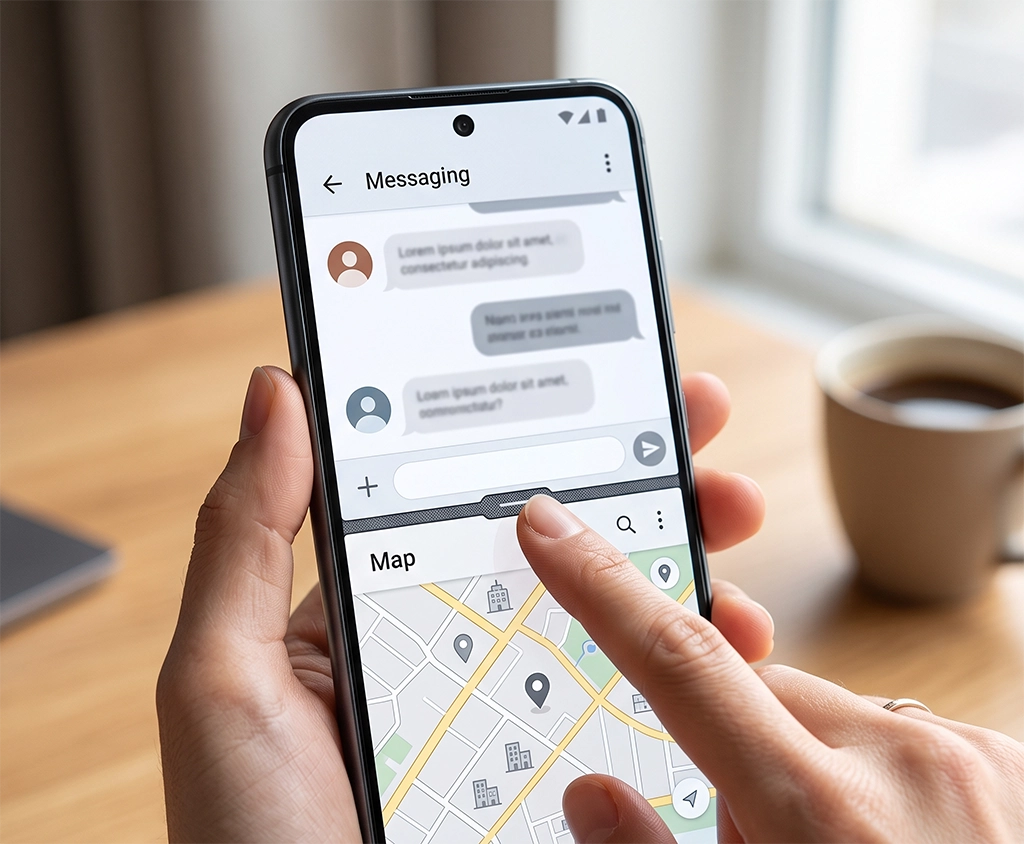
After you open two apps, a divider appears between them.
Touch and drag the divider upward or downward to change how much space each app uses.
If you want the upper app to take up more of the display, move the divider downward. If you need more space for the lower app, drag it upward.
For video and messaging, it is often more comfortable to give the video app slightly more space. For web research and note-taking, dividing the display into two similarly sized sections may be easier to use.
Avoid making one app window too small. Some apps may hide buttons, menus, images, or text when there is not enough space.
How to Switch the Position of Two Apps
You may be able to switch the upper and lower apps without closing split-screen mode.
Tap the divider or the small control in the center of the divider. If a swap icon appears, select it.
The app in the upper section will move to the lower section, and the lower app will move to the upper section.
The icon design and available controls can differ by device and software version. If you do not see a swap option, close split screen and reopen the apps in your preferred order.
How to Save Frequently Used App Pairs
If you regularly use the same two apps together, check whether your phone allows you to save them as an app pair.
Open the two apps in split-screen mode and tap the control in the center of the divider. Look for an app pair, star, plus, or add shortcut icon.
Depending on your Galaxy model, you may be able to save the app pair to the Home screen, Apps screen, taskbar, or Edge panel.
For example, you could save the following combinations:
- YouTube and Messages
- Samsung Internet and Samsung Notes
- Gmail and Calendar
- Google Maps and Messages
- Shopping app and Calculator
- Online course app and Notes
Once saved, selecting the app pair can open both apps in split-screen mode without requiring you to choose each app separately.
This option is especially useful for people who repeat the same mobile work, study, or communication tasks every day.
How to Exit Split Screen on Samsung Galaxy
The easiest way to close split-screen mode is to drag the divider to the top or bottom edge of the display.
To keep the upper app open, drag the divider all the way to the bottom. The upper app should expand to full-screen mode.
To keep the lower app open, drag the divider all the way to the top. The lower app should then fill the screen.
You may also be able to exit split screen by opening Recent Apps and dismissing the combined app preview. Some Galaxy devices provide a full-screen button in the divider menu.
What to Do When Samsung Galaxy Split Screen Is Not Working
If “Open in split screen view” does not appear, work through the following checks.
Make Sure You Tap the App Icon
Open Recent Apps and tap the small icon above the app preview.
Tapping the large preview area simply opens the app. It does not display the split-screen menu.
Check Whether the App Supports Split Screen
Not every app supports Multi Window.
Banking, authentication, payment, security, camera, video, and gaming apps may restrict split-screen use. The app developer may also disable the feature because of security requirements, content protection, or display limitations.
Try opening split screen with two widely supported apps, such as Samsung Internet and Samsung Notes. If this combination works, the issue is probably related to the original app rather than the phone.
Check the Multi Window Settings
Open Settings and search for “Multi window.”
Review the available options and make sure that relevant split-screen or gesture settings are enabled. Settings can differ between Galaxy models, so using the search field is usually faster than following a fixed menu path.
Install Software and App Updates
Open Settings and check Software update for any available system update.
You should also update the affected app through the Google Play Store or Galaxy Store. An older app version may have compatibility problems after an Android or One UI update.
After installing an update, restart the phone before testing split-screen mode again.
Restart Your Galaxy Smartphone
If Recent Apps does not load correctly or Multi Window suddenly stops responding, restart the phone.
Restarting can clear temporary interface problems and minor conflicts between recently used apps.
If the issue returns repeatedly, note which two apps were open when the problem occurred. This can help determine whether the issue is limited to a particular app combination.
Try a Different Screen Orientation
Some apps are easier to use in landscape orientation.
Enable Auto rotate from the Quick Settings panel and turn the phone sideways. Video, maps, documents, and other wide-format content may be more practical when split across a landscape display.
App layouts can change significantly in landscape mode, so check whether buttons and text remain easy to use.
Practical Ways to Use Split Screen
Learning how to use split screen on Samsung Galaxy devices can make everyday tasks more efficient.
You can watch a video while replying to messages, follow an online lesson while writing notes, or use a map while sharing a meeting location with someone.
When shopping online, open a shopping app with Calculator to compare discounts, bundle prices, or delivery costs. You can also compare information from two apps without repeatedly switching between their screens.
Opening Calendar with an email app allows you to check dates and create an event while reading an invitation. Similarly, opening a browser with Samsung Notes makes it easier to organize research without copying everything from memory.
Split screen is most valuable when both apps support your main task. If one app requires frequent typing or detailed controls, give that app the larger section of the display.
Split Screen vs. Pop-Up View
Split screen and pop-up view are both part of Samsung’s multitasking features, but they work differently.
Split screen divides the display into fixed sections. It is useful when both apps need to remain visible and receive similar attention.
Pop-up view opens an app in a smaller floating window. You can move or resize the window while another app stays open behind it. This may be more convenient when you only need to check a message, calculator, or note briefly.
Use split screen for tasks such as watching and messaging, researching and writing, or checking email and Calendar together. Use pop-up view when the second app only needs to remain available temporarily.
The options available for each app can vary. Some apps may support pop-up view but not split screen, while others may restrict both features.
Accessories That Can Improve Split-Screen Use
You do not need an accessory to use Galaxy split screen. It is best to try the built-in feature before buying anything.
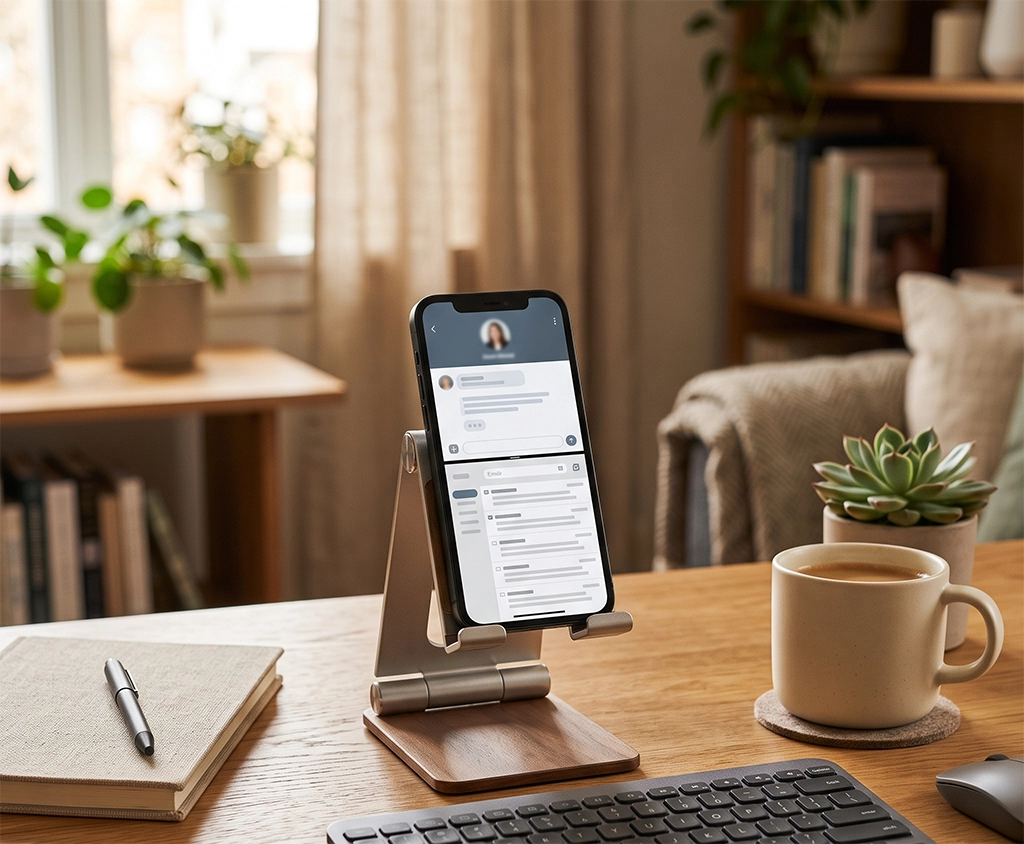
However, an adjustable phone stand can be useful if you frequently watch videos, attend online classes, or refer to documents while typing. Choose a stand that remains stable when you touch the screen and can support both portrait and landscape orientations.
A compact Bluetooth keyboard may be useful if you regularly write notes, emails, or documents on your phone. Before purchasing one, check its supported operating systems, keyboard layout, charging method, device-switching feature, and overall width.
If text becomes difficult to read when two apps are open, adjust the font size and screen zoom before replacing your device. Open Settings, go to Display, and review Font size and style and Screen zoom.
If the display still feels too limited after adjusting these settings, consider a larger Galaxy smartphone, a Galaxy Z Fold model, or a Galaxy Tab when it is time to upgrade. Compare display size, app compatibility, portability, keyboard support, and how often you actually multitask before making a decision.
Samsung Galaxy Split Screen Tips
Keep these points in mind for a smoother experience:
- Open the most important app first if you want it in the upper section.
- Tap the small app icon in Recent Apps, not the app preview.
- Resize the windows based on which app needs more space.
- Save app pairs when you regularly use the same combination.
- Use landscape mode for videos, maps, and wide documents.
- Try pop-up view when you only need the second app briefly.
- Check app compatibility when the split-screen option is missing.
- Search for “Multi window” in Settings if the menu location has changed.
Summary: How to Use Split Screen on Samsung Galaxy
The key to using split screen on Samsung Galaxy is opening Recent Apps and tapping the small icon above the app preview.
Select “Open in split screen view,” then choose the second app. Once both apps are open, drag the center divider to resize the windows.
On supported devices, the center controls may also let you switch app positions or save the two apps as an app pair. To exit split-screen mode, drag the divider to the top or bottom edge of the display.
If the split-screen option is missing, check whether the app supports Multi Window, search for Multi Window settings, install available software updates, and restart the device.
Because menus and supported features vary by Galaxy model and One UI version, check your device model and software version if the instructions do not exactly match what appears on your screen.
Frequently Asked Questions
Can every Samsung Galaxy app use split screen?
No. Some apps restrict split-screen use because of security, content protection, or interface limitations. If the option does not appear for one app, test the feature with another app before assuming there is a problem with the phone.
Can I use YouTube and a messaging app together?
In many cases, yes. Open YouTube first, go to Recent Apps, tap the YouTube icon, select “Open in split screen view,” and choose your messaging app.
App behavior may differ depending on the video service, app version, account settings, and device software.
Why is “Open in split screen view” missing?
The app may not support split screen, or you may have tapped the preview instead of the small app icon. The option may also vary by model and One UI version.
Can I use three apps at the same time?
The number of apps and available layouts depend on the device. Larger-screen Galaxy devices, certain foldable models, and Galaxy tablets may offer more advanced Multi Window arrangements than standard Galaxy smartphones.
Does split screen use more battery?
Running two active apps can increase processor, display, network, and memory usage compared with using a single app. Battery impact depends on the apps involved. Video streaming, navigation, gaming, and video calls generally use more power than notes or messaging.
How do I make one split-screen app larger?
Drag the center divider toward the app that needs less space. The other app will expand. The minimum window size depends on the app and device.