
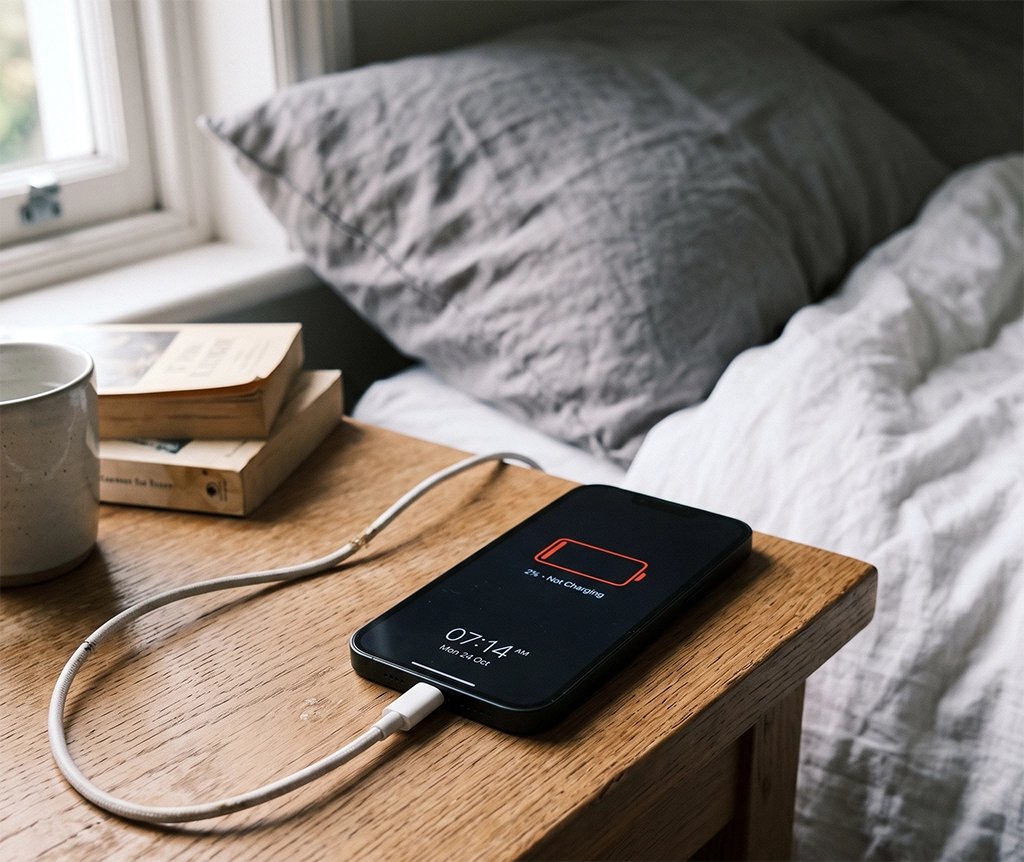
You plug in your charger, but the charging icon does not appear. Even after waiting several minutes, the battery percentage stays exactly the same.
A phone that suddenly stops charging can be stressful, especially when you are about to leave home, commute to work, or travel. It is easy to assume that the battery, charging port, or internal hardware has failed.
However, a phone that will not charge does not always have a serious hardware problem. The cause could be as simple as a faulty wall outlet, damaged charging cable, incompatible power adapter, dust inside the charging port, or a temporary software issue.
If your phone is not charging, working through the following seven checks can help you identify whether the problem comes from the charger, cable, power source, charging port, battery, or phone itself.
Before buying a new charger or paying for a repair, follow these steps in order.
1. Check the Wall Outlet and Power Source
When your phone is not charging, begin with the power source instead of the phone.
Connect another electronic device to the same wall outlet to confirm that it is working. If you are using a power strip, check whether its individual power switch is turned on.
Whenever possible, connect the power adapter directly to a wall outlet. An old or overloaded power strip may provide an unstable electrical connection, especially when several devices are connected at the same time.
Try the same charger in a different wall outlet. If the phone begins charging normally, the original outlet or power strip may be the problem.
Avoid relying on low-power USB ports
If you are charging through a laptop, desktop computer, monitor, keyboard, or vehicle USB port, switch to a wall charger.
Some USB ports provide less power than a standard wall adapter. Your phone may display the charging symbol but charge extremely slowly.
If you continue using your phone while it is connected to a low-power USB port, its power consumption may be equal to or greater than the amount of power being supplied. As a result, the battery percentage may remain unchanged or even continue to decrease.
Check that every connection is secure:
- The adapter should be firmly connected to the outlet.
- The cable should be fully inserted into the adapter.
- The connector should fit securely inside the phone.
- The charging connection should not stop when the cable moves slightly.
If any connection feels unusually loose, inspect the cable, adapter, and charging port before continuing.
2. Inspect the Charging Cable for Damage
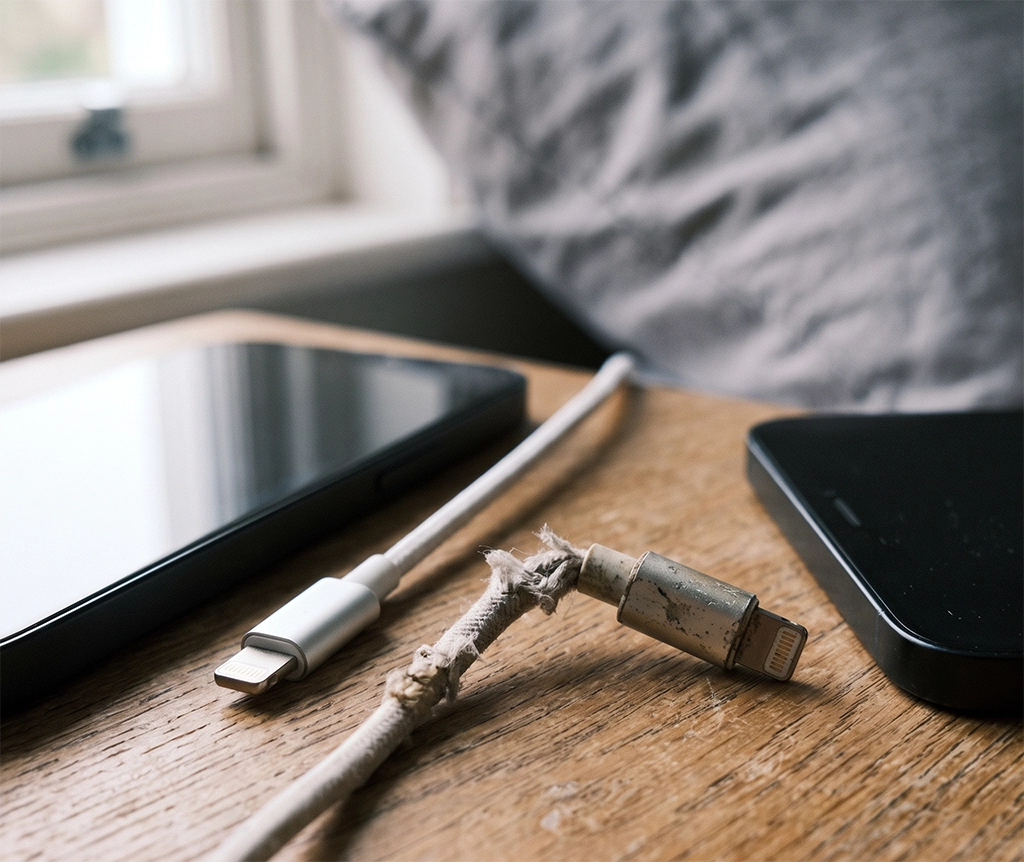
Charging cables are consumable accessories. Repeated bending, pulling, twisting, and daily storage can damage the internal wires even when the outside of the cable looks normal.
Inspect your charging cable carefully.
Consider replacing it if you notice any of the following problems:
- The outer coating is cracked or peeling.
- The cable is sharply bent near the connector.
- The connector is discolored, corroded, or deformed.
- Charging stops when the cable moves.
- The phone repeatedly connects and disconnects.
- The cable or connector becomes unusually hot.
- The connector no longer fits securely in the phone.
The quickest way to test the cable is to use another cable that you know works correctly.
Connect the replacement cable to the same adapter and wall outlet. If the phone begins charging normally, the original cable is probably damaged.
If changing the cable does not solve the issue, test a different power adapter. Testing one component at a time makes it easier to identify which part is causing the charging problem.
Check more than the connector type
When buying a replacement cable, do not look only at whether it uses USB-C or Lightning.
Cables with the same connector can support different charging speeds, maximum power levels, and data-transfer standards. A cable may physically fit your phone but may not support the charging power required for fast charging.
For example, a high-wattage power adapter cannot deliver its full charging performance if the cable is rated for lower power.
Before purchasing a new cable, check:
- The connector type
- The maximum supported wattage
- Fast-charging compatibility
- The required charging protocol
- Cable length and durability
- Safety certification
- Compatibility with your phone model
Stop using a cable if its insulation is damaged or the connector is bent. A damaged cable can cause unstable charging, overheating, short circuits, or damage to the phone’s charging port.
3. Test the Power Adapter and Confirm Its Output
If the cable appears to work correctly, test the power adapter.
Connect your existing cable to another compatible adapter that is known to work. If charging begins, the original adapter may be damaged or may not provide enough power.
If the phone still does not charge, continue testing with another cable. Separately testing the adapter and cable helps prevent unnecessary replacement purchases.
A low-power adapter may appear to be faulty
A low-output charger may show a charging icon while increasing the battery percentage very slowly.
This is especially noticeable when the phone is being used for power-intensive activities such as:
- Mobile gaming
- Video editing
- Navigation
- Video calls
- High-resolution video streaming
- Mobile hotspot use
- Large application updates
In these situations, the phone may consume power as quickly as the charger supplies it. The phone can appear to have stopped charging even though it is still receiving a limited amount of power.
Close demanding applications, turn off the screen, and check whether the battery percentage begins to increase.
Choose a compatible fast charger
A charger with a higher wattage does not automatically make every phone charge faster.
The phone, adapter, and cable must support compatible charging standards. The phone will generally accept only the amount of power it is designed to receive.
Before purchasing a new fast charger, check:
- Your phone’s maximum charging input
- The recommended adapter wattage
- USB Power Delivery compatibility
- PPS support, if required
- The number and type of charging ports
- Whether power is shared between multiple ports
- The cable wattage required for full performance
Multiport chargers can be convenient, but their advertised maximum output may be divided when several devices are connected. For example, a charger may provide its highest output through one port only when the other ports are not being used.
Choose a charger from a reputable manufacturer and confirm that its rated output and safety information are clearly displayed. Avoid products with missing manufacturer details, unclear electrical specifications, or suspiciously low prices.
4. Check the Charging Port for Dust, Lint, and Moisture
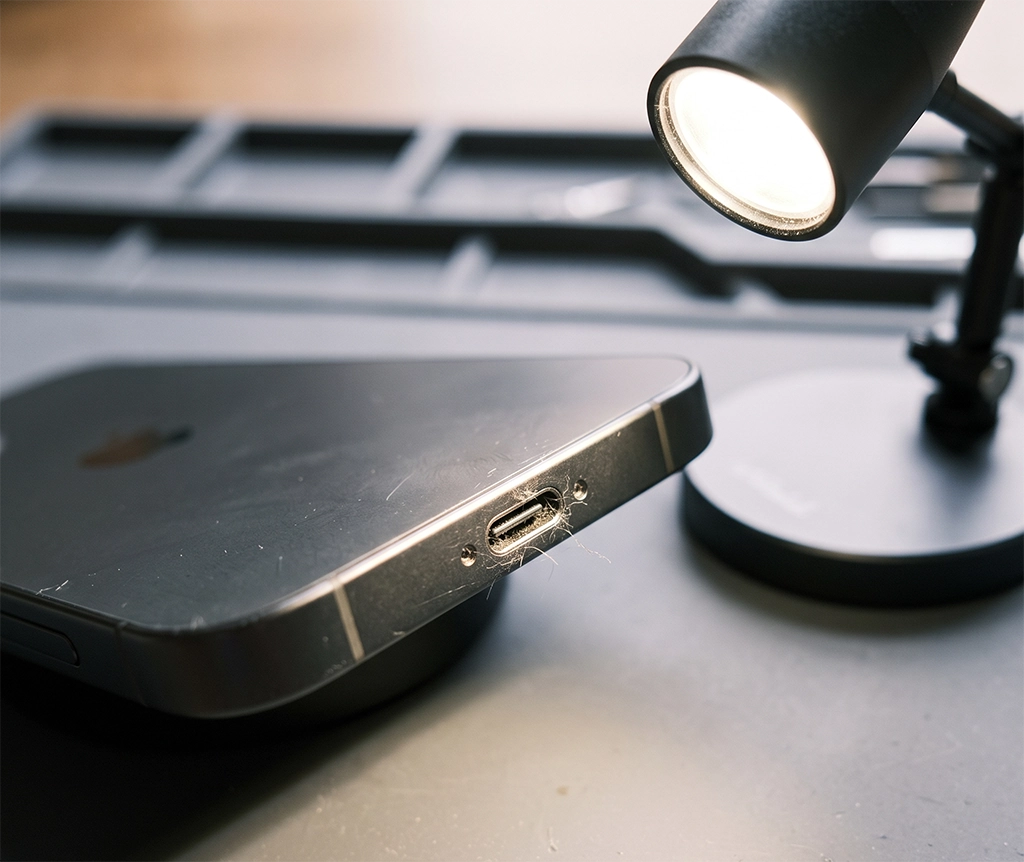
Dust and fabric lint can gradually collect inside a phone’s charging port, especially when the phone is frequently carried in a pocket or bag.
Compressed lint can prevent the connector from entering the port completely. This may result in slow charging, repeated disconnection, or no charging at all.
A blocked charging port may be the cause if:
- The cable does not go in as deeply as before.
- The connector falls out easily.
- Charging works only at a particular angle.
- The phone repeatedly connects and disconnects.
- The connector feels loose despite using a new cable.
Turn off the phone and inspect the port under a bright light.
Do not insert metal objects into the port
Do not use a needle, pin, paper clip, metal pick, or sharp tool to remove debris.
The small internal contacts can bend or become scratched. A metal tool may also cause an electrical short or permanent charging port damage.
If the debris is near the entrance, you may gently clean around the opening with a soft, dry brush. Do not push dirt farther into the port.
When lint is packed deep inside the connector, professional cleaning is safer than attempting to remove it with improvised tools.
What to do when a moisture warning appears
If your phone displays a message such as “Moisture detected,” “Liquid detected,” or “Liquid or debris in USB port,” disconnect the charging cable immediately.
Charging while moisture remains inside the port can cause corrosion or damage to the contacts and internal components.
Allow the phone and charging port to dry completely before attempting wired charging again.
Avoid the following methods:
- Do not insert tissue paper or cotton swabs into the port.
- Do not use a hair dryer or other direct heat source.
- Do not place the phone on a radiator.
- Do not expose the phone to intense sunlight.
- Do not insert sharp tools to test whether the port is dry.
- Do not repeatedly reconnect the cable while the warning remains.
A water-resistant phone can still block wired charging when moisture is detected. Water resistance does not mean that it is safe to charge the phone while the port is wet.
If the moisture warning continues after the phone has had sufficient time to dry, the port may contain residue, corrosion, or a sensor fault. In that situation, arrange a professional inspection.
5. Check Whether the Phone Is Too Hot or Too Cold
Modern smartphones can reduce charging speed or temporarily stop charging when the battery temperature moves outside an acceptable operating range.
This is a protective feature intended to reduce battery stress and prevent heat-related damage.
Move the phone away from:
- Direct sunlight
- A hot vehicle interior
- Heating equipment
- Electric blankets or heated surfaces
- Closed bags with poor ventilation
- High-temperature outdoor environments
Extremely cold conditions can also affect charging. If the phone has been used outdoors in freezing weather, bring it indoors and allow it to return gradually to room temperature before charging.
Reduce heat while charging
Close applications that place heavy demand on the processor, graphics hardware, or mobile network.
Examples include:
- Games
- Video editing applications
- Navigation applications
- Camera recording
- Video calls
- High-resolution streaming
- Large file transfers
- Mobile hotspot features
A weak mobile signal can also increase battery use because the phone may continuously search for a stronger connection.
Turn off the screen and allow the phone to charge without being used. If you have a thick case, remove it temporarily to improve heat dissipation.
Do not place a hot phone in a refrigerator or against ice. Rapid cooling can cause condensation inside the device and create additional damage.
Leave the phone in a shaded, well-ventilated area at room temperature. Try charging it again only after its temperature has returned to normal.
If the phone becomes extremely hot whenever it is charged, even when no applications are running, stop charging and arrange an inspection.
6. Restart the Phone and Review Charging Settings
If the charger, cable, power source, and charging port appear normal, restart the phone.
A temporary operating system error can prevent the charging indicator from appearing correctly. Battery information can also become temporarily inaccurate.
After restarting, connect the phone to a wall charger and wait a few minutes.
If the battery is completely depleted, the screen may remain blank for some time after the charger is connected. Avoid pressing the power button repeatedly. Leave the phone connected to a reliable wall charger before attempting to turn it on again.
Review battery and charging options
Open the phone’s settings menu and review its battery and charging options.
Depending on the phone manufacturer and operating system version, you may find settings such as:
- Fast charging
- Fast wireless charging
- Battery protection
- Optimized charging
- Adaptive charging
- Charging limit
- Maximum battery percentage
- Battery health management
If the phone stops charging near 80%, it may not be broken. Some phones intentionally delay or limit charging to reduce long-term battery wear.
A battery protection setting may be configured to stop charging at a specific percentage. An optimized charging feature may also learn your routine and postpone the final stage of charging until shortly before you normally disconnect the phone.
Check the battery settings before assuming that the charger or battery is faulty.
The name and location of these options vary by manufacturer, phone model, and software version.
Check wireless charging separately
If wired charging works but wireless charging does not, remove the phone case and place the phone in the center of the charging pad.
The following accessories can interfere with wireless charging:
- Thick protective cases
- Wallet cases
- Credit cards
- Magnetic plates
- Metal rings
- Ring holders
- Magnetic mounts
- Misaligned magnetic accessories
Ensure that there is nothing between the phone and wireless charging surface.
If charging begins and stops repeatedly, adjust the phone’s position. The internal charging coil must align properly with the coil inside the charging pad.
Also confirm that the wireless charger itself is connected to a compatible power adapter. A wireless charging pad connected to an underpowered adapter may charge slowly or not function correctly.
7. Determine Whether the Battery or Charging Port Needs Repair
If the phone does not charge after testing multiple wall outlets, cables, and power adapters, the fault may be inside the phone.
Consider professional inspection if you notice any of the following symptoms:
- The cable must be held at a specific angle.
- The charging port moves or feels loose.
- The cable falls out easily.
- The moisture warning repeatedly returns.
- The area around the charging port becomes unusually hot.
- The charging port appears discolored or corroded.
- The battery percentage rises or falls suddenly.
- The phone repeatedly shuts down while charging.
- The charging icon appears, but the battery continues to decrease.
- The screen or rear cover is lifting.
- The battery appears swollen.
- The phone produces a burning smell or smoke.
- The phone becomes too hot to handle comfortably.
If charging works only when the cable is held in a specific direction, the internal contacts may be damaged or the port may be physically loose.
Continuing to move or press the cable can make the damage worse. Stop forcing the connection and arrange an inspection.
Sudden battery percentage changes, repeated shutdowns, or rapid battery drain while connected to a working charger may indicate battery deterioration or a power-management problem.
Stop using the phone if the battery is swollen
A swollen battery is a safety issue.
If the rear cover or display is lifting, do not press it back into place. Do not puncture, bend, squeeze, or attempt to remove the battery yourself.
Disconnect the charger and stop using the phone.
Place the device away from paper, bedding, sofas, or other easily combustible materials. Contact an authorized service center or qualified repair provider for instructions.
If you notice smoke, a burning smell, or severe heat, move away from the device and contact local emergency services if there is an immediate fire risk.
What to Prepare Before Taking Your Phone in for Repair
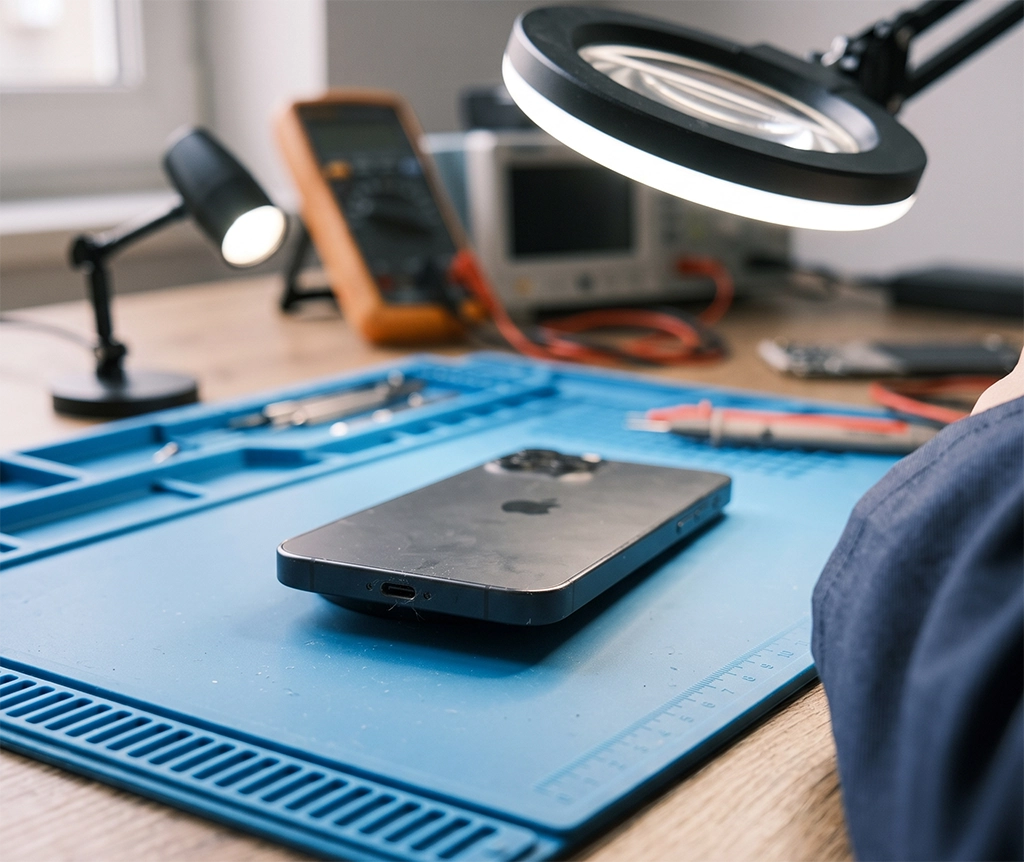
If all seven checks fail to solve the problem, prepare the phone for professional diagnosis.
Back up important information whenever the phone still has enough power to operate.
Consider backing up:
- Photos and videos
- Contacts
- Messages
- Documents
- Notes
- Authentication applications
- Password manager information
- Mobile payment information
- Application data
- Important work files
A repair may require a device reset, software restoration, or replacement of internal components. Data recovery may not always be possible if the phone loses power completely.
Before contacting a repair provider, write down the following information:
- Phone manufacturer and exact model
- Date when the charging problem started
- Types of cables and chargers tested
- Whether wired charging works
- Whether wireless charging works
- Any moisture or USB warning messages
- Whether the charging state changes when the cable moves
- Recent water exposure
- Recent drops or physical impacts
- Warranty status
- Device protection or care-plan coverage
This information can help the technician reproduce the problem and provide a more accurate estimate.
Compare repair options carefully
Repair costs vary according to the phone model, warranty status, part availability, water damage, and the exact cause of failure.
When comparing an authorized service center with an independent repair shop, do not compare price alone.
Ask about:
- Whether original or aftermarket parts will be used
- Repair warranty duration
- Diagnostic fees
- Estimated turnaround time
- Data preservation
- Water-resistance testing
- Whether water resistance can be maintained
- Battery disposal and recycling
- Written price estimates
- Additional charges if internal damage is discovered
What appears to be a simple charging port problem may involve the battery, charging assembly, power-management circuit, or main board. Request a clear diagnosis and written estimate before approving an expensive repair.
Phone Not Charging: 7-Step Checklist
If your phone is not charging, follow this order:
- Test another wall outlet.
- Try a known working charging cable.
- Test another compatible power adapter.
- Check the charging port for lint and moisture.
- Allow the phone to return to a normal temperature.
- Restart the phone and review its charging settings.
- Arrange an inspection of the battery and charging port.
Following this sequence helps you separate an accessory problem from a problem inside the phone.
It may also prevent unnecessary purchases. For example, testing a working cable before buying a new adapter can reveal that only the cable needs replacement.
If the phone still does not charge with a verified cable, compatible adapter, and working wall outlet, professional diagnosis is the safest next step.
Do not repeatedly force the cable into a loose or damaged charging port. Doing so can increase the repair cost by damaging the connector or internal charging assembly.
Stop charging immediately if you notice battery swelling, smoke, a burning smell, severe heat, or physical deformation.
When contacting a service center or repair shop, provide the phone model, the date the problem began, any moisture warnings, and a list of the chargers and cables you tested. Clear information can make the diagnostic process faster and more accurate.
Frequently Asked Questions
Why is my phone plugged in but not charging?
The most common possibilities include a faulty wall outlet, damaged cable, defective adapter, dirty charging port, moisture warning, high or low phone temperature, software error, or battery problem.
Begin by testing another wall outlet, cable, and adapter. Then inspect the charging port and restart the phone.
Why does my phone show the charging icon but the battery percentage does not increase?
The charger may not be supplying enough power, or the phone may be consuming power as quickly as it receives it.
Stop using the phone, close demanding applications, turn off the screen, and connect it to a compatible wall charger. If the battery percentage still does not increase, test another cable and adapter.
Why does my phone stop charging at 80%?
A battery protection, optimized charging, adaptive charging, or charging-limit feature may be enabled.
High battery temperature can also cause charging to slow down or pause. Check the battery settings and allow the phone to cool before trying again.
Can I clean the phone charging port myself?
You can inspect the port and gently clean around its entrance with a soft, dry brush. Do not insert metal or sharp objects into the port.
If lint is packed deep inside the connector, professional cleaning is safer.
How do I know whether the cable or charging port is damaged?
Try a known working cable and adapter.
If several cables fail, or charging works only when the connector is held at a particular angle, the charging port may be dirty, loose, or damaged.
Should I replace the battery if my phone does not charge?
Not immediately. Charging failure can also be caused by the cable, adapter, charging port, temperature, moisture detection, or software.
Replace the battery only after the problem has been properly diagnosed.
Can I use wireless charging when the charging port is damaged?
You may be able to use wireless charging temporarily if your phone supports it and there is no battery swelling, overheating, smoke, or burning smell.
Wireless charging is not a safe workaround when the phone has a serious battery or heat-related problem.